Lets say you're a line manager, and you want to create a filter to only view recognitions from your own team... this guide will show you how to achieve that.
Note: This method will also show recognitions your team create for people outside of your team - ie, perhaps you're the Marketing Manager, and Ahmad in your team recognises Annette in IT for their help last week - this will appear in your filtered results too.
Step 1:
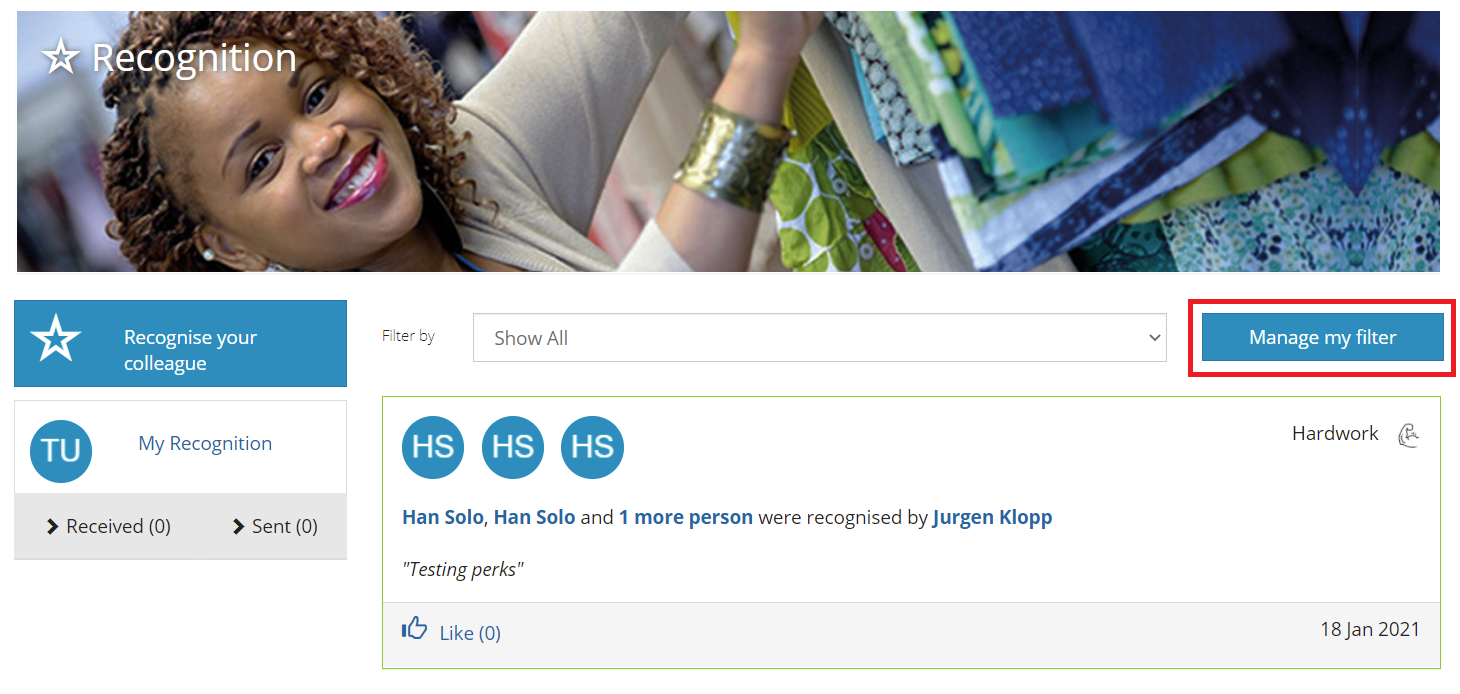
We start by accessing the employee view of recognition, and click the "Manage my filter" button on the right hand side
Step 2:
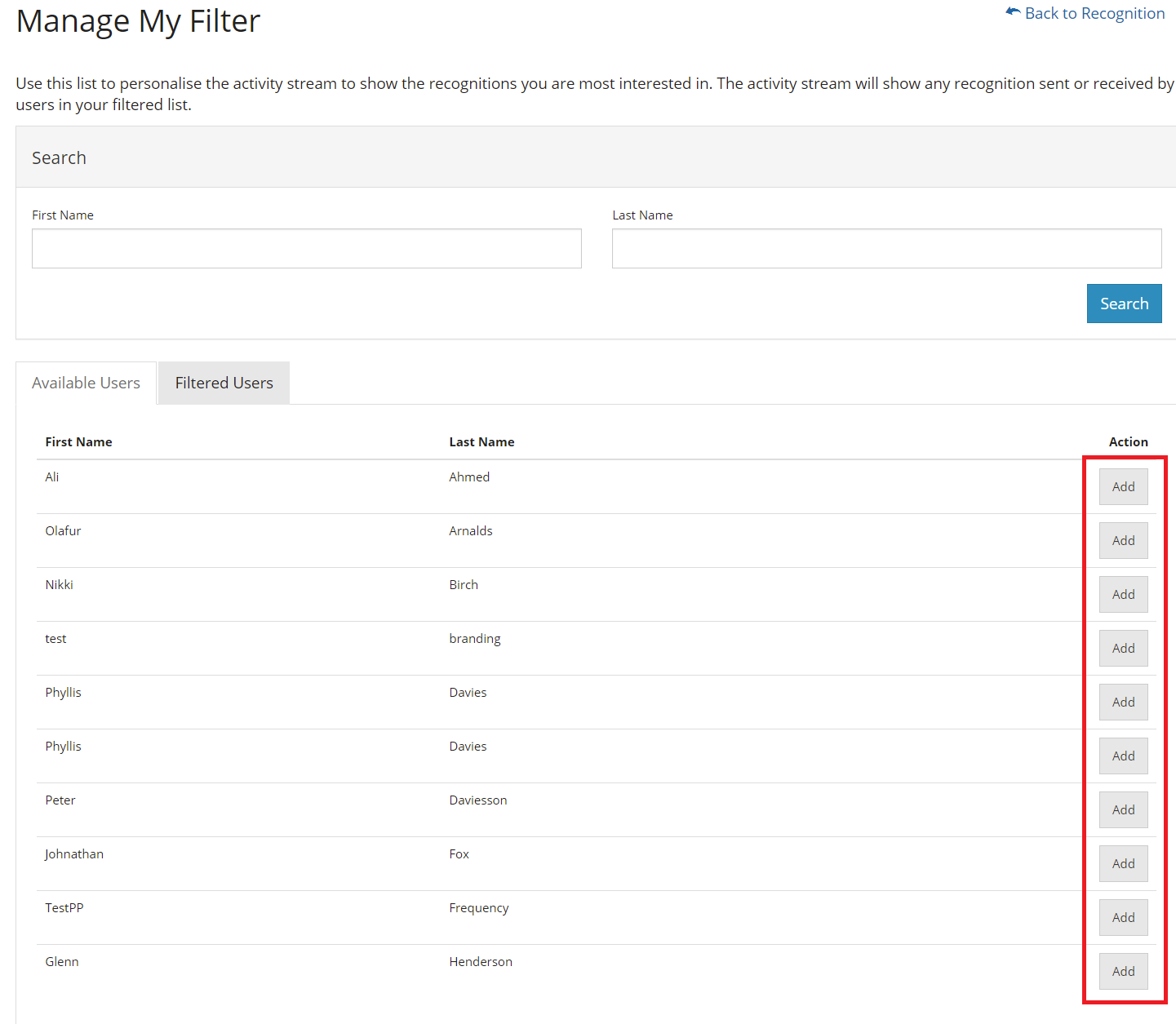
The Manage Filter page is split into two sections:
- "Available Users" - the users who have not been added to your filter
- "Filtered Users" - the users who have been added to your filter
From the list of employees, now choose who you wish to add to your filter. Each click will automatically save the filter.
Step 3:
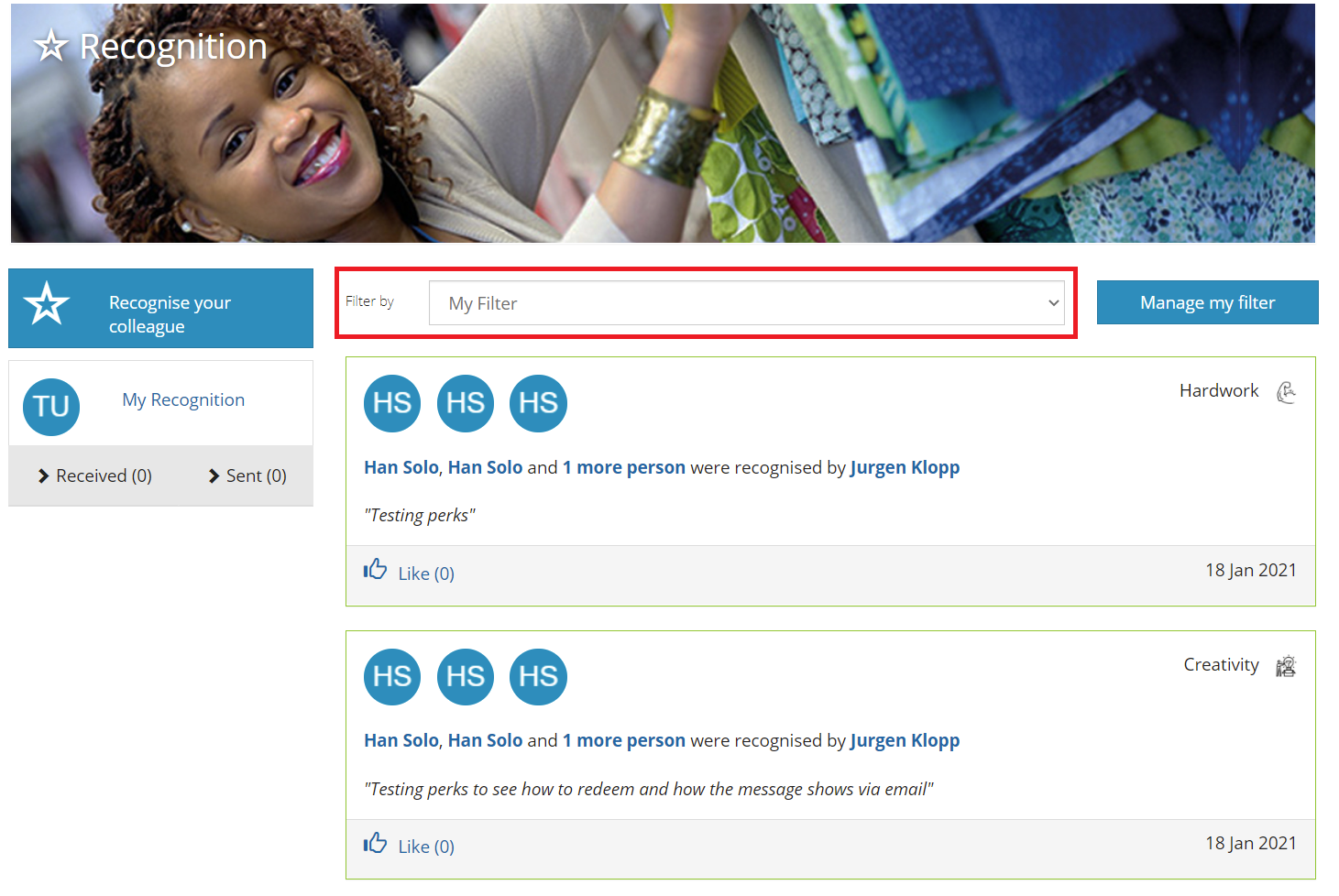
Now it's time to view the filter, click to return to recognition and use the filter dropdown to select "My Filter". This will now only show recognitions created by those users and recognitions made for those users.
Comments
0 comments
Article is closed for comments.