Prior Considerations
The YouatWork APIs are free to use. We suggest you have a read through our "What can the YouatWork APIs be used for?" documentation, so you can get an idea of what can be achieved - however, remember these are just some ideas, not requirements nor limitations!
To start configuration as explained in this guide, you would need to have been sent an API username and password; If you haven't already received this, but want to use the API, please speak to your account manager.
You will also need to know your "External Company ID", which should have been supplied alongside your username and password.
Introduction
We provide a REST API that lets you create, read, change and delete your data in a secure way. The base URL for all requests on live is https://api.youatwork.com.
Most things, such as users, are identified by a unique integer generated by YouatWork when it is created. Each of our Clients has a "External Company ID" too, which you will need to use for certain API requests.
For example, if you ask for all benefit selections via our selections API, you will need to add the "External Company ID" you were provided with to the URL (explained in the technical API documentation)
Security
The API is secured using a combination of OAuth and HTTPS. This means that:
- When you want to e.g. read some data, you need to supply an access token as part of the API call to read the data;
- To get an access token you need to call a separate API that deals with tokens, passing it your user name and password.
The user name and password will be given to you by You At Work staff.
To get a token, send a POST request to https://api.youatwork.com/token, where
- The header includes
-
Content-Type = application/x-www-form-urlencoded
-
- The body includes
-
grant_type = password
-
username = user name as supplied by You At Work
- password = password as supplied by You At Work
-
Assuming the user name and password are valid, the result of the API will be JSON that looks something like this:
{
"access_token": very long string of characters enclosed in speech marks,
"token_type": "bearer",
"expires_in": 86399
}
Take the value of the access token and use this in subsequent calls to the main API. To do this, add the following to the header of the API call:
- Authorization = Bearer access_token's value without enclosing speech marks
The expires_in value in the result says how long the token is valid for, in seconds. When the token expires, simply call the token API again. Typically, a token is something that is requested at the beginning of a user's session, and then used for the rest of that session, but they last 24 hours.
How input data is interpreted for creates and updates
The entities in the YouatWork system for e.g. a user have many elements to them - first name, last name, salary information etc. In the request, all entities must be present otherwise the request will fail, however, you can send NULLs in the request for entities you do not need to populate for that request. You can see the full list of entities required for each request in the technical API documentation
However, please note, on a PUT request to update a User, we have included a boolean "ignoreNulls" entity. When set to "false", if you null out all of the users data it will override their data to null. When "ignoreNulls" is set to "true" the update process will skip entities with null values - effectively allowing you to you to only send the relevant data you want to update for that user, with the rest nulled.
External text
There is an optional header you can add to API calls: YAWEXTERNALTEXT. If this header is present, its value is added to the internal You At Work log entry for that API call.
This is potentially useful if you have many members of staff, and want to be able to audit which of them made a particular change to your data within You At Work. The access token (and the user name and password behind it) are at the company level, and so all API calls for a given token will look alike to us. The external text header allows you to tag an API call with, for instance, the user id that identifies a given member of staff within your system.
Further information
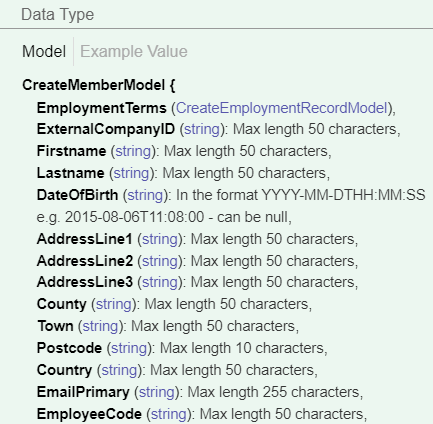
The details of the API are given in Swagger documentation at https://api.youatwork.com/swagger. To see things such as the maximum length of an email address in the data sent for a user, make sure that you click on Model and not Model Schema next to the relevant parameter in the section for that API.
Comments
0 comments
Please sign in to leave a comment.