This article will give some case study examples of how employer cost calculations can work for certain real-world benefits.
These are just examples and are not limitations to what is achievable.
Health Cash Plan / Dental Insurance
It is quite common for clients to pay for level 1 of either, or both Health Cash Plan or a Dental Insurance benefit.
To get this to work on the You at Work system, you could do it realitively simply by just setting the employer cost as as fixed value - however, you'd need to update this calculation whenever the cost changes - here's an example:SET @Result = 120
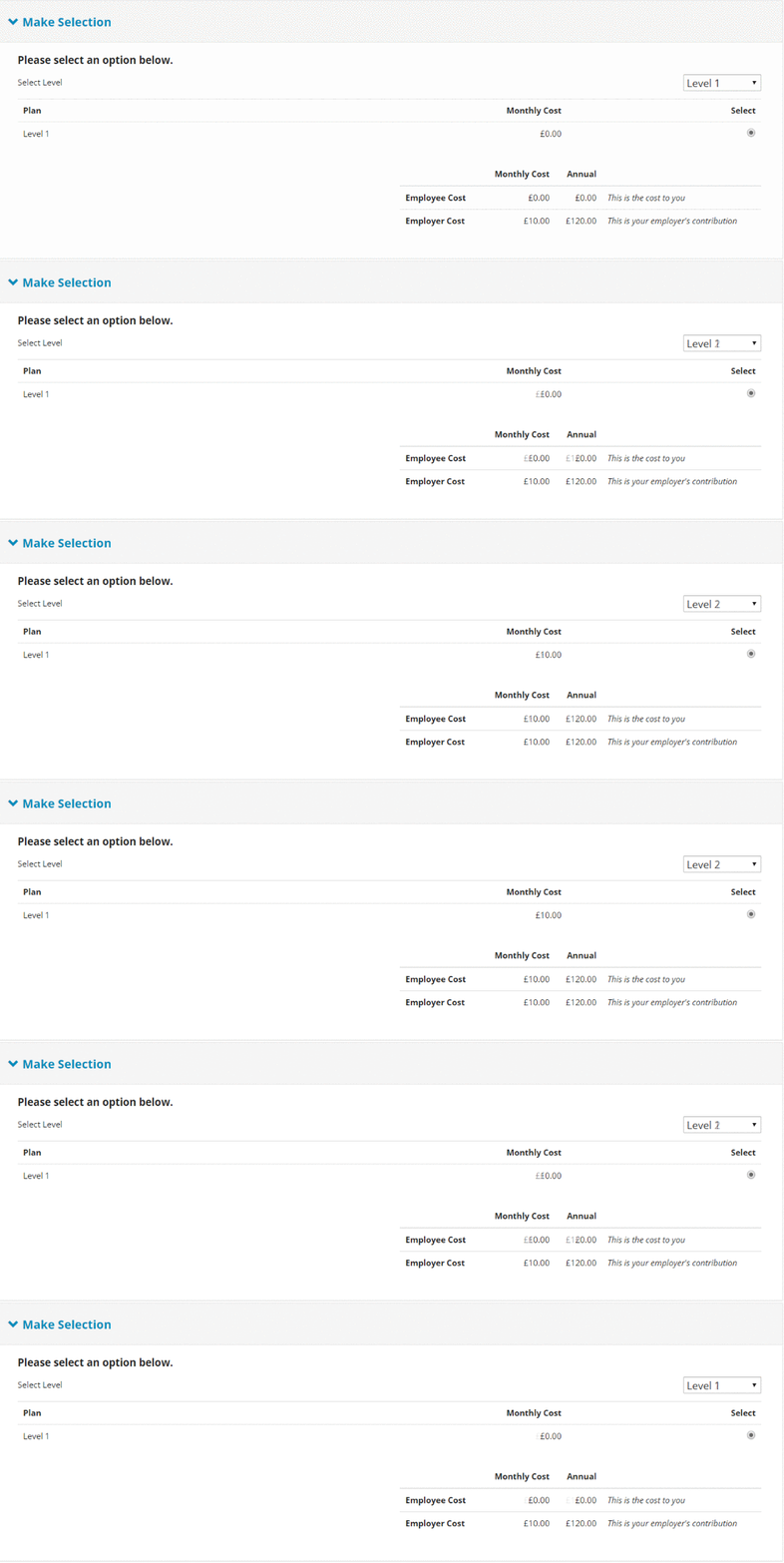
You could set the Level Values to only be the upgrade cost - ie, if Level 1 was £120 , but the employer was paying for it - then set Level 1 within the benefit as 0, and deduct £120 from each of the following levels like in this example:

This would then dovetail very nicely with the employer cost calculation. In this example, the employee cost will be £0 for Level 1, and it'll then only show the employee their cost to upgrade to Level 2, whilst capping the employer cost at the £120 for level 1
Pension Matching
It is very common for employers to offer basic pension matching, whilst retaining the NI savings.
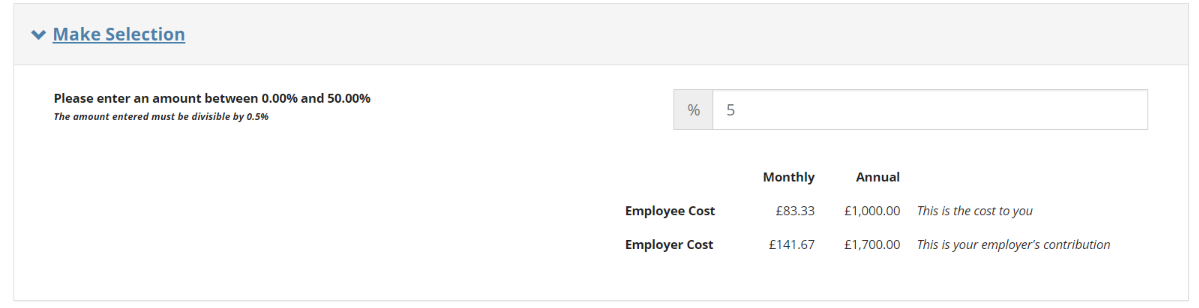
In this example, the employer is paying a max of 9% of salary with decreasing amounts down to a minimum of 7%; unless the employee chooses less than 2%.
If an employee selected 4% pension contribution, the employer cost will be set as 8% the users @ActualSalary.
This calculation uses a case arguement, allowing you to say "when" something happens "then" X
SET @Result = case


  when @EmployeeValue >= 6.0 then @ActualSalary/ 100 * 9

  when @EmployeeValue >= 5.0 then @ActualSalary/ 100 * 8.5

  when @EmployeeValue >= 4.0 then @ActualSalary/ 100 * 8

  when @EmployeeValue >= 3.0 then @ActualSalary/ 100 * 7.5

  when @EmployeeValue >= 2.0 then @ActualSalary/ 100 * 7

  when @EmployeeValue < 2.0 then 0


  else 0

  end;
This example sees an employee with a £20,000 salary select 5%, and the employer cost is calculated at 8.5%
Pension Matching with NI passback
Sometimes clients wish to pass an NI saving back to the employee; this can also be achieved with a calculation.
Let's use the above scenario again, but this time with 100% NI passback.
Here, we are declaring two temporary variables to use within the calculation.(Note, when declaring the temporary variables you must state what data type each is)
This calculation is working out the temporary variable '@NIPassback' value, by first getting the real variable @EmployeeCost and multiplying by 13.8%. Then, we're setting another temporary variable '@EmployerCost' which decides how much the employer contribution is, before finally adding both the temporary variables together to get the total employer cost, with @Result.
Declare @NIPassBack int

Declare @EmployerCost int


  SET @NIPassBack = @EmplpoyeeCost / 100 * 13.8


  SET @EmployerCost = case


  when @EmployeeValue >= 6.0 then @ActualSalary/ 100 * 9

  when @EmployeeValue >= 5.0 then @ActualSalary/ 100 * 8.5

  when @EmployeeValue >= 4.0 then @ActualSalary/100 * 8

  when @EmployeeValue >= 3.0 then @ActualSalary/ 100 * 7.5

  when @EmployeeValue >= 2.0 then @ActualSalary/ 100 * 7

  when @EmployeeValue = 2.0 then 0


  else 0

  end;


  Set @Result = @NIPassBack + @EmployerCost
(Note: If the employer only wanted to pass back 50% of the NI saving, then simply change the 13.8 in the NIPassBack calculation example below to 6.9.)
This example sees the same employee as the previous example, with a salary of £20,000, again selecting 5%, but this time the employer pays 8.5% plus the 100% NI passback. 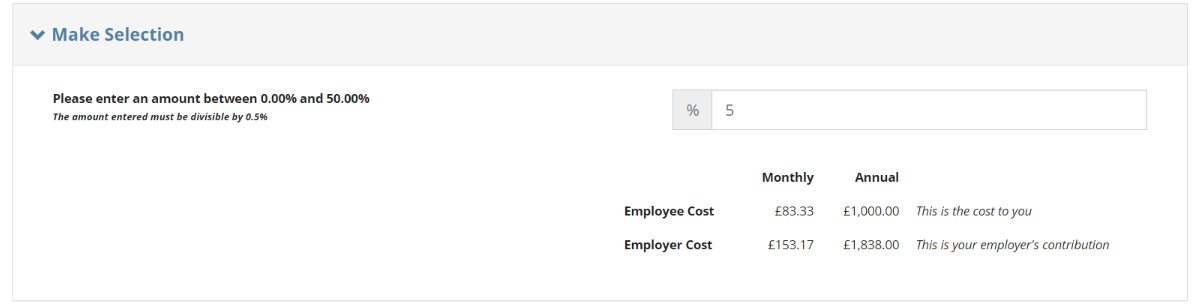
Private Medical Insurance
Another common benefit that has employer cost elements is Private Medical Insurance. Often there will be a set of employees who get a certain level paid, and another set of employees who get a higher or no level of cover paid.
Lets start with a basic implementation of all staff getting employee cover paid; nothing else for now as this is a very simple calculation
Here we're setting the employer cost as the employee rate - as the rate table is loaded as the employee-only rate; simple!
SET @RESULT = @EmployeeRate
If instead it was all staff getting employee and partner, then you could multiply by the @EmployeeRate by the "weighting" (Link off to weighting guide)
SET @RESULT = (@EmployeeRate * 2)
As mentioned above it does get more complicated if certain employees get different levels, this generally happens with Senior Managers getting a higher level paid, or probationary staff not getting any employer funding
There will be a few differnet ways to achieve this, and will mainly depend on how you have differentiated the employees for your client; ie, have you used groups, or any of the custom fields s1,s2,s3,s4,s5?
In this example, we're to assume there's a separate group for SMT members named, SMT and a group for probationary staff named probation, and we're to use IF and ELSEIF statements to multiple the @EmployeeRate by different "weightings". The "Else" in the statement is used as a catchall to ensure all other employees get employer funding at employee cover.
  IF (@MemberGroupName = 'Probation')

  BEGIN

  SET @RESULT = 0

  END


  ELSE IF (@MemberGroupName = 'SMT')

  BEGIN

  SET @RESULT = (@employeeRate * 2.5)

  END


  ELSE

  SET @RESULT = @EmployeeRate
Comments
0 comments
Article is closed for comments.