TRS+is module that is very easy to setup and manage. Clients require a subscription to TRS+ then the TRS+ Manager role must be allocated to one of the client's administrators in order to manage it.
TRS+ is a spreadsheet driven, visual representation of an employee's total reward package; the employer £sterling costs of all the benefits you provide for the employee. Effectively, whatever you put on the spreadsheet will show on the screen, so it is only limited by your creativity. Note, it does not do any calculations. Therefore, if you put incorrect values and totals in for any users, it'll appear wrong on their screen.
TL;DR:
- have up to 20 elements
- exclude certain employees from certain benefits where required
- update it as little or as often as required
- different versions for different sets of employees
- privacy mode toggle
If you're still interested, lets break down those points a little more...
Elements:
The 20 available elements are clearly labeled on the sample file, you literally rename the column header on the spreadsheet with whatever you want to call the element and that will show on the screen. Head over to our how-to guide to learn how to amend these.
Exclude certain employees from seeing certain benefits:
Lets say you use all 20 elements above, but you have a few individuals who do not have a few particular benefits. You can prevent those employees from seeing them by simply leaving the values null for those employees. More on how to it this later...
Update it as little or as often as required:
TRS+ being a self service module means you are in control of when and how often it is updated. You could create one for every single new joiner, could do weekly,monthly, bi-annual or even just annual updates.
Different versions for different sets of employees:
A solution for large companies that have acquired companies and built up a myriad of tupe benefits schemes over time, or those with "grades" of employees where each get a complicated set of benefits... you can have different TRS+ setup for each of these.
Simply prepare your own spreadsheet template for each, and only put the relevant employees on the respective groups. This allows you to change the element names accordingly.
Privacy Mode:
An inbuilt privacy mode is on by default; this hides all of the values in case an employee is viewing the TRS in an open office for the first time and doesn't want to share their information with others.
An example of a TRS+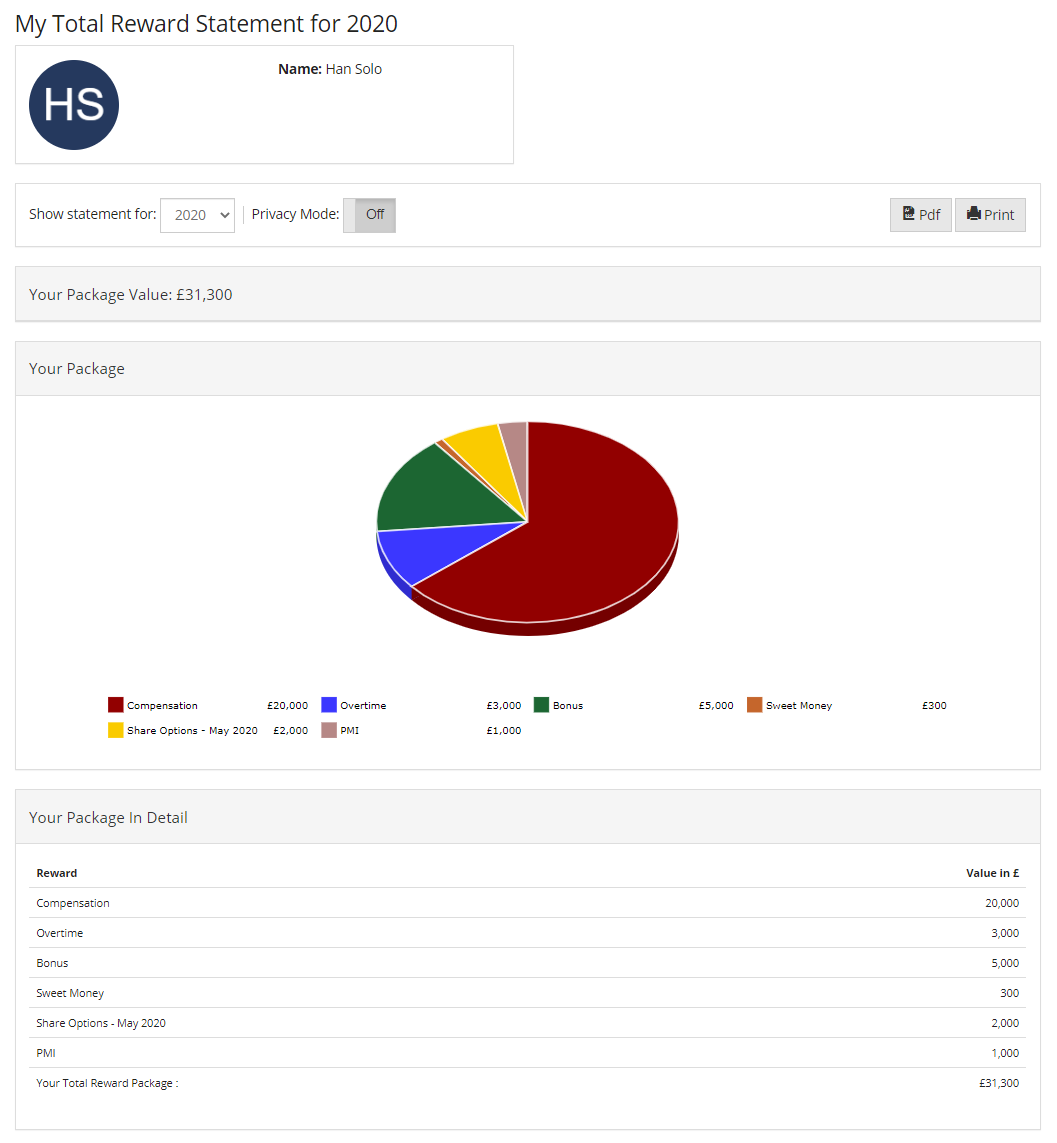
Comments
0 comments
Please sign in to leave a comment.