As much as we all try to avoid it; inevitably there are unavoidable scenarios where shortly after a benefit will become available the rates/costs will change and you need to update them. This article will show you how to handle this.
Important Points:
At which point is a selection saved to the database?
Costs of a selection are saved to the database when the user clicks to "add to basket". When the user checks out, the costs are not checked again to see if they've changed, the status simply changes from "in-basket" to "complete pending approval" and the cost remains unchanged.
Changing the costs within benefit manager does not automatically update a users' selection
Changing the costs this way does not automatically update the selections of the users, as it's complicated by context over which selections do you/don't you change. Sometimes the change is only for people new selections, so you only want incomplete selections - sometimes it's for everyone.
What are the ramifications of updating a selection?
It's crucial to understand the ramifications of the change you're about to make. What will happen next is very contextual, based on the circumstances of why, or even when you are updating the selections.
Regardless of when you do this process, no email communications will ever be generated to tell the employee you have amended their cost. You are responsible for communicating this change offline.
By default no completed reporting will be updated; ie if this is an existing benefit where the provider was previously notified of cost X for the employee, they won't be notified automatically of cost Y. However, if this process is done within the context of a selection window and it is done before the window has closed, the reporting will show the changes when your administrator starts the administration process; so there is no concern there.
So how do we change the costs on occasions where we really must?
We've created an entirely controllable process whereby the administrator goes into the selections themselves, choose which selections they need to amend and then clicks to recalculate those accordingly. The administrator can choose to bulk update literally all selections for this benefit, filter to show a certain status, ie just those that are in basket, or even just select certain individual employee's selections to be recalculated.
Watch the video below or follow these basic steps:
- Within the benefit config page, change your costs for the benefit
- Click the selection count, or the individual user icon for the benefit you have amended
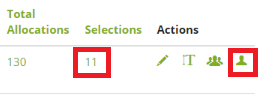
- Either choose the individuals you wish to have selections recalculated for, or bulk select all
- Click Recalculate
- Check the count of users to be recalculated is what you expect
- Click Confirm to submit the change
- Done!
Comments
0 comments
Please sign in to leave a comment.