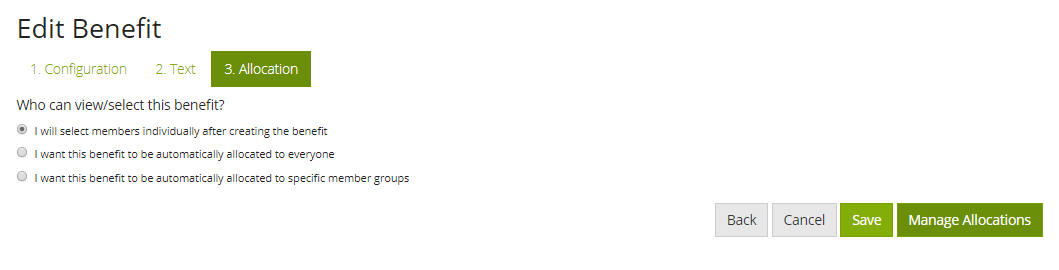
When creating a benefit, the 3rd step is to allocate the benefit to users. Here you have three options :
You may change this setting at a later date, and may do so by pressing the Users icon on the benefit within the list of benefits on benefit manager

Allocate to individuals
What is this used for?
Clients usually use this option when setting up a benefit for the first time, and need to get sign off from a another person; they'd allocate the benefit to the user whom needs to sign off then later come back to assign to others
Another common example are legacy benefits, where only select members of staff who already have it can now have access to it, perhaps because the benefit is no longer offered, or it's a benefit for Tupe'd staff on a different contract to the majority
How do I choose the individuals?
Start firstly by saving the 1st option, to allocate to individuals. The page will refresh and give you the option to "Manage Allocations"
The Manage Allocations page gives you an intuitive view and user interface to easily see who does not have access to the benefit, who does have access to the benefit, then specifically who has access and has already chosen the benefit.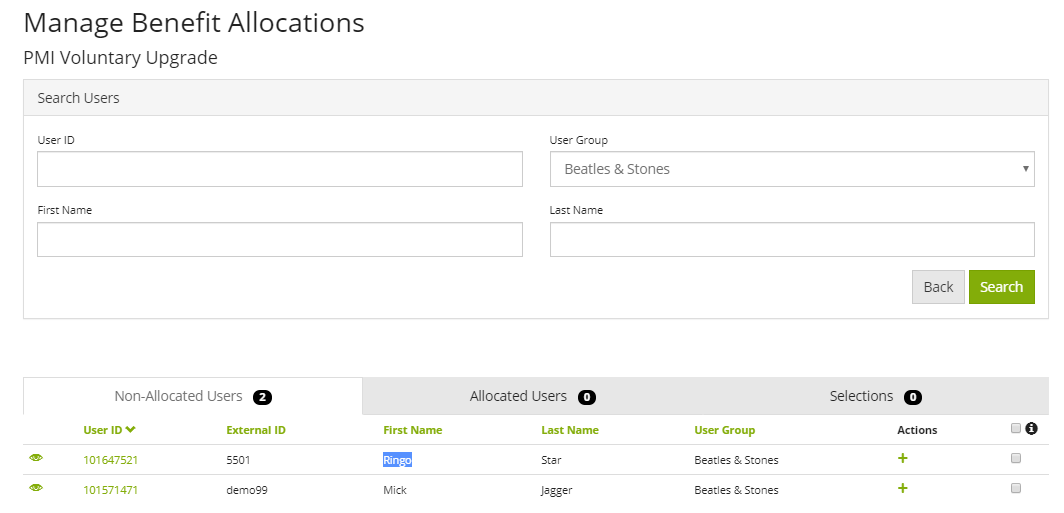
- From the "Non Allocated Users" tab, you can add people to the benefit by clicking the + icon next to their name
- From the "Allocated Users" tab you can remove people from the benefit with the
 icon
icon - You can bulk select on either page, up to 400 users at a time, and filter by groups or search for specific users where required
Allocate to All
What is this used for?
This option is useful if the benefit should simply be given to everyone. When this option is set, our system checks once per minute for anyone who doesn't have the benefit visible to them, and gives it to them. Great for companies who add new joiners throughout the month and want to ensure the benefit is given to people immediately.
Allocate to groups
What is this used for?
Many clients use groups to segregate employees and then to give certain benefits to those groups. For instance, is there a special benefit only available to certain set of employees on a tupe contract? Put those employees into a group and then only they will see this benefit.
How do I assign which groups should have access to the benefit?
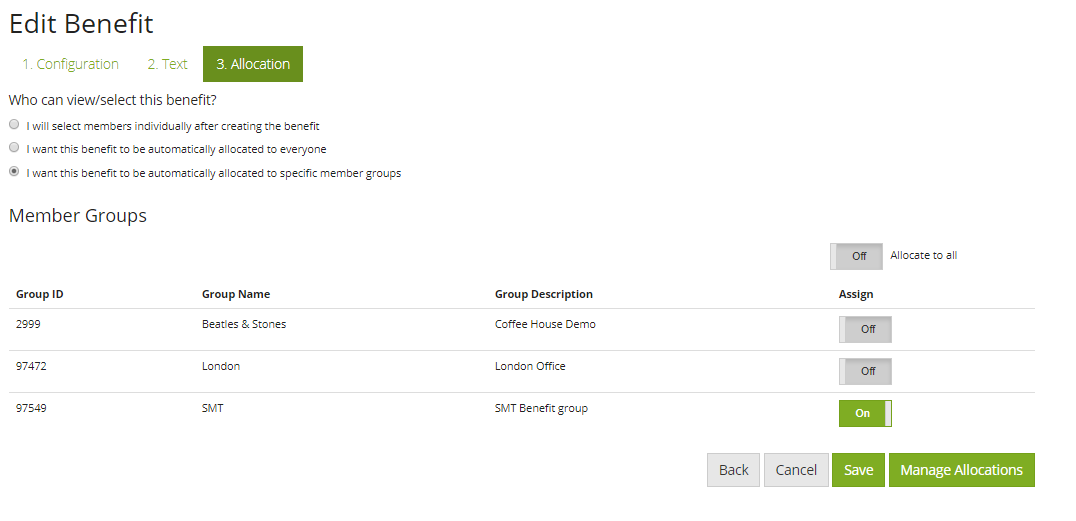
Select the 3rd option to say you want to give access to specific groups. You will then be greeted with a list of your available groups, and you simply tick the groups you wish to have access.
A benefit can be allocated to multiple groups, but before you can use this option you must have 1 or more groups created.
When this option is set, our system checks once per minute for anyone who is in one of these groups and doesn't have the benefit visible to them yet, then gives it to them.
What happens if someone is removed from the group which had the benefit?
If the employee hadn't made a selection against it yet, removing them from the group or moving to another group which doesn't have the benefit will remove their access from the benefit.
If the employee did have a selection against the benefit, whether that be "Added to Basket" or "Completed", then they will retain access to it once they are no longer in the group. You will need to remove this remove manually.
Comments
0 comments
Please sign in to leave a comment.