|
Benefit type |
Benefit suggestion |
Description |
|
Core |
- |
- |
|
Fixed value |
Flu jab |
A Fixed value benefit allows you to set the amount the benefit costs |
|
Rate |
Private medical insurance |
Rate benefit uses calculations to find the correct costs of the benefit depending on the users’ demographics |
|
Holiday trading |
Holiday trading |
This benefit uses the salary information of the user and calculates the costs for buying or selling holiday |
|
Information only |
Will writing |
Only the information about the benefit is shown, sometimes leading to another site to sign up from the process |
|
Busy bees |
- |
- |
|
Range value |
Cycle to Work or Pension |
This benefit has 2 values which the user can choose from the amount of money they wish to spend on the benefit. Can either be a fixed amount or a % of salary |
|
Drop down |
Dental insurance |
This benefit allows you to choose from different levels to select the right benefit selection for the user |
|
SSO - Single sign on |
Dental insurance from provider |
Allow employees to single sign on to another providers website and make selection there. Requires setup from you at work for each new provider |
Fixed value
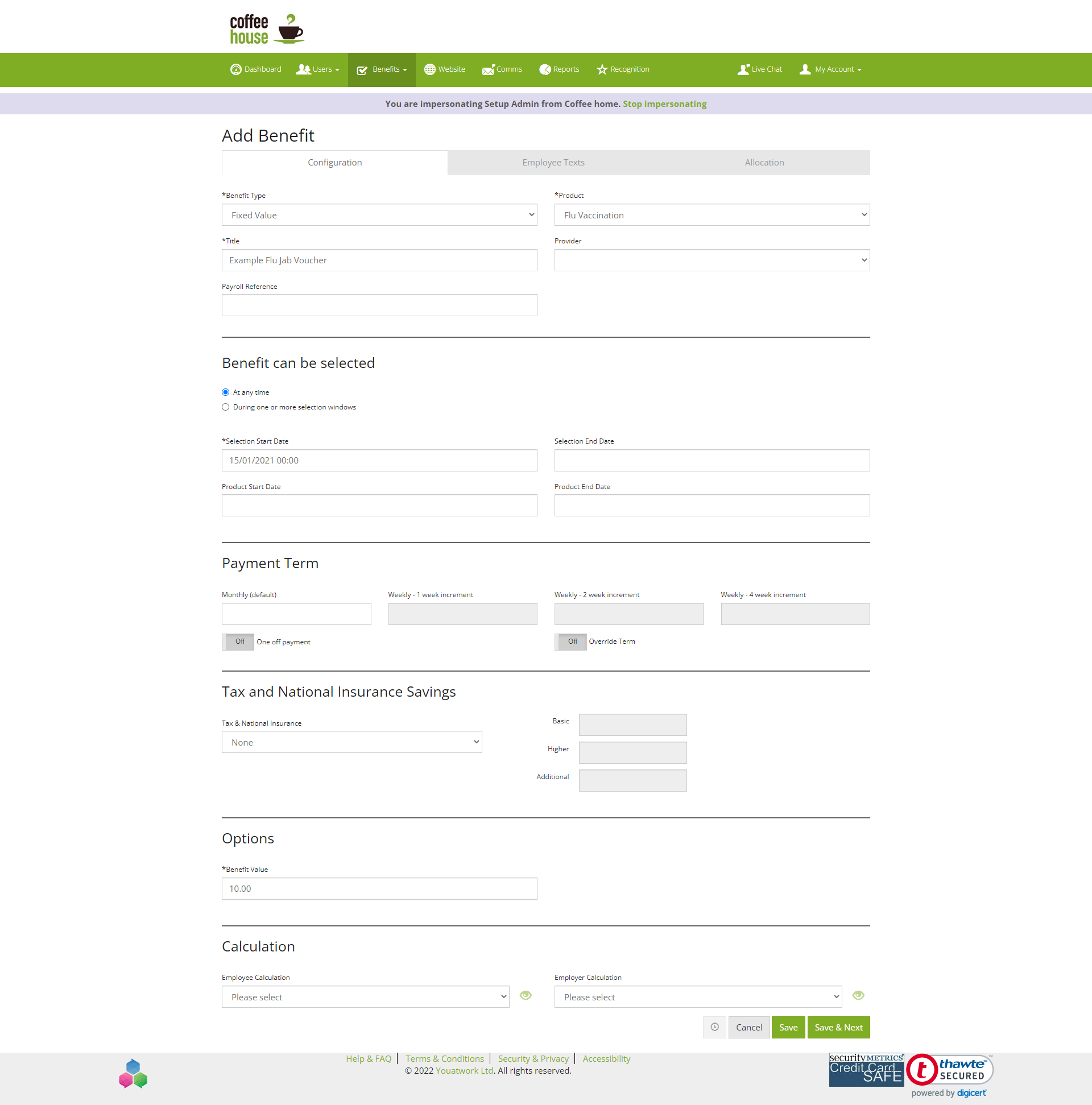
A fixed rate benefit allows you to set a value for how much the benefit can cost. When this value is set the person selecting the benefit cannot make any changes to the value. An example of using a fixed value would be having a flu jab. E.g., the amount the flu jab cost could be £10.00. This is shown on the benefit and taken out from the user during checkout.
Example: Flu jab
To create this type of benefit:
As seen the image below the benefit type is fixed value. When creating the benefit enter the benefit type as fixed value and enter the rest of the details of the benefit. After filling in the details of the benefit in the options section enter the value you want for the benefit in the ‘benefit value’. After this continue to employee text and allocation and save the benefit.
Rate
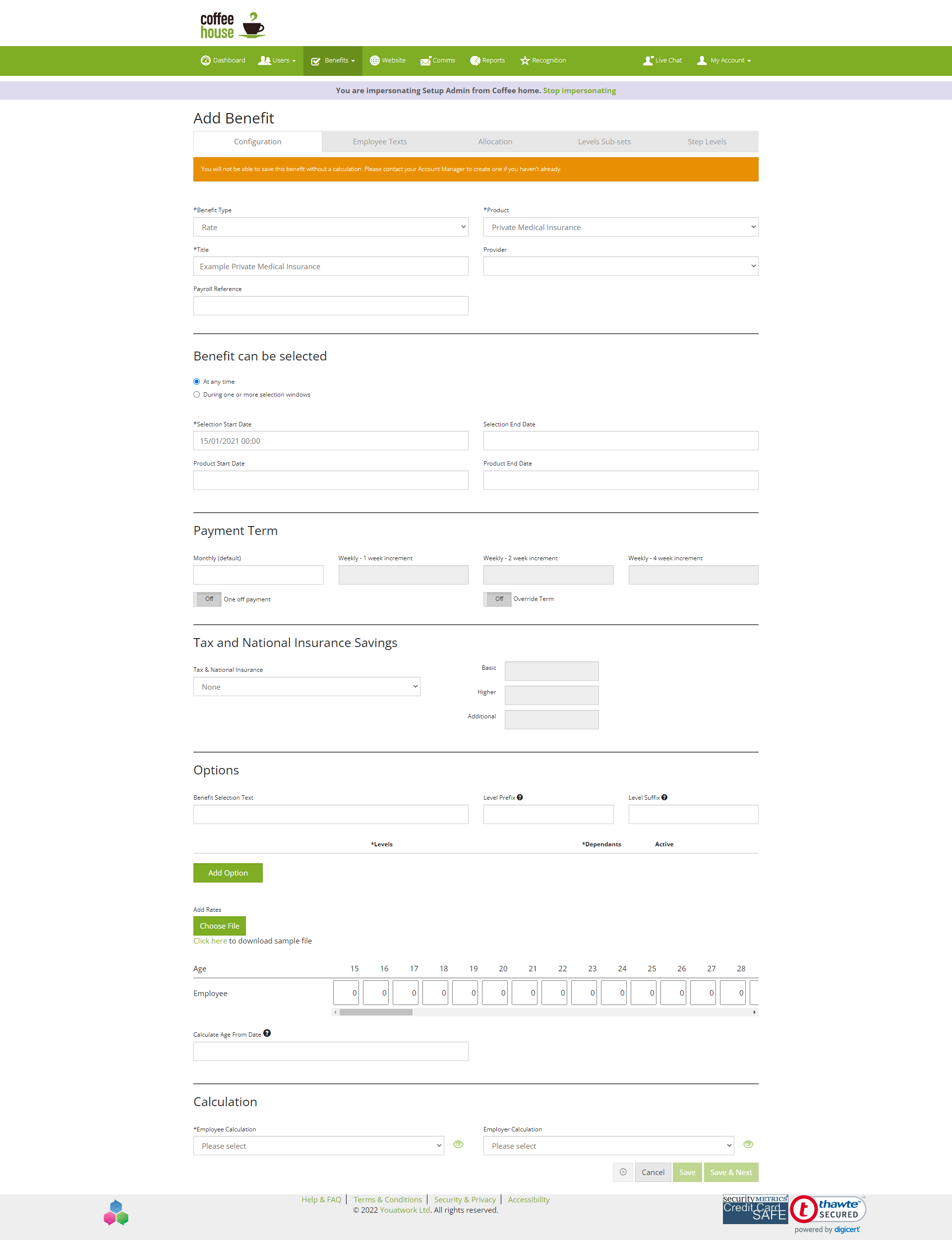
A rate benefit uses calculations to calculate the correct cost of the benefit for the person selecting the benefit. These calculations are either employee or employer calculations or both.
An example of a rate benefit is private medical insurance. This benefit uses the age of the person to calculate the cost. You can also add dependants to this benefit, which acts like a dropdown benefit.
To add rates into the benefit there are two options:
- One option is to download the sample file and add each rate into the spreadsheet
Or
- Put in the rates to the correct age in the table
Then you would need to contact the YAW implementation team with the calculations for the benefit of either the employee, employer or both calculations for the calculations to be included in the benefit.
Holiday trading
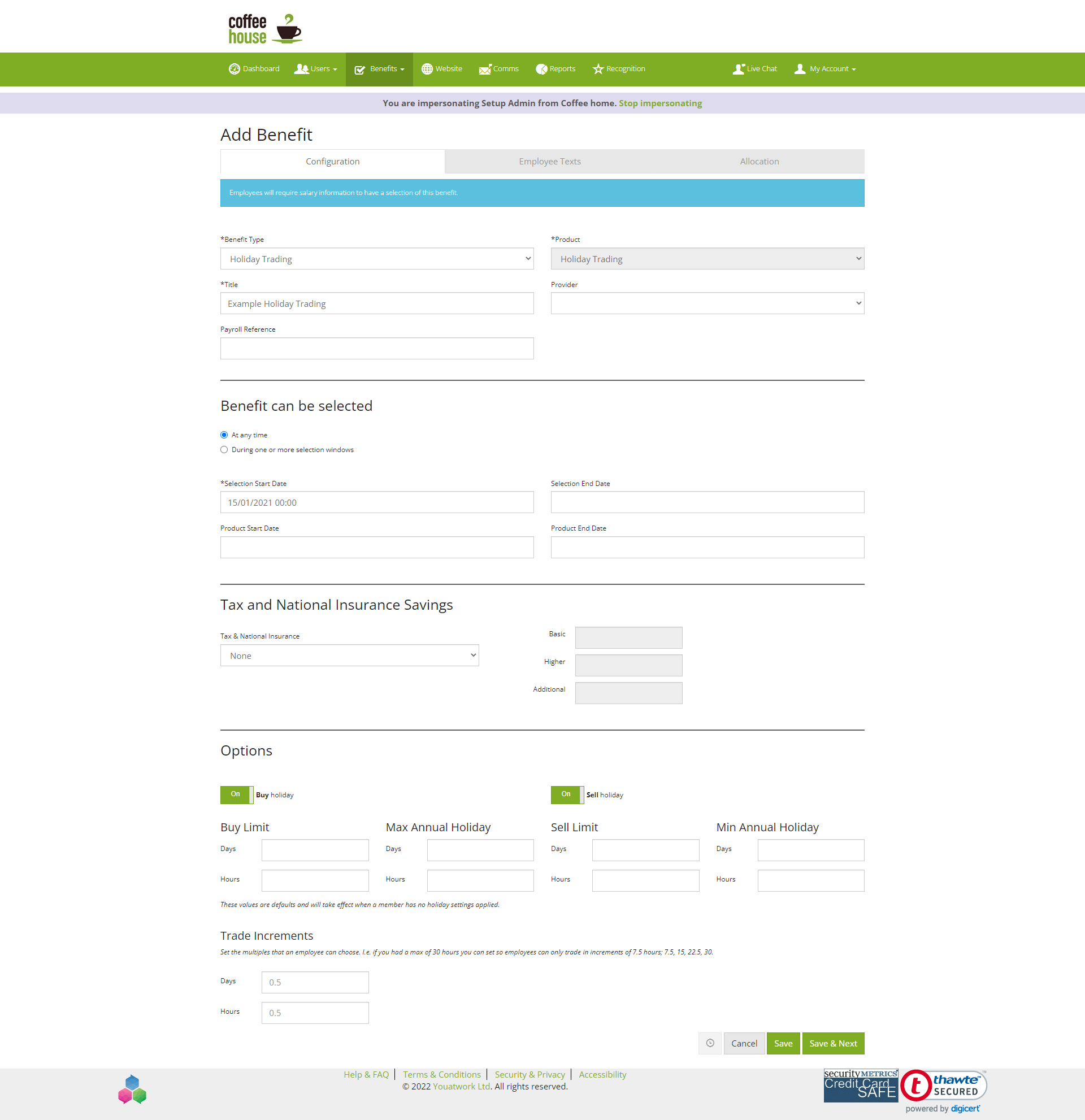
Holiday trading calculate the costs of buy or selling holiday days using the salary information provided on the system. The salary information and holiday trading allowance (add in spreadsheet link guide how to upload holiday trading data) needs to be completed for each user for the holiday trading cost to calculated correctly.
To add holiday trading data follow these two guides:
To create this type of benefit:
When creating the benefit enter the benefit type as holiday trading and enter the rest of the details of the benefit. In the options section you will need to turn on the buy and sell options. You can also add the maximum number of days the user can buy or sell. However, if you have added salary information for the users then you won’t need to add the maximum buy and sell days but will still need to turn on the buy and sell options. After filling in the details of the benefit continue to employee text and allocation and save the benefit.
Information only
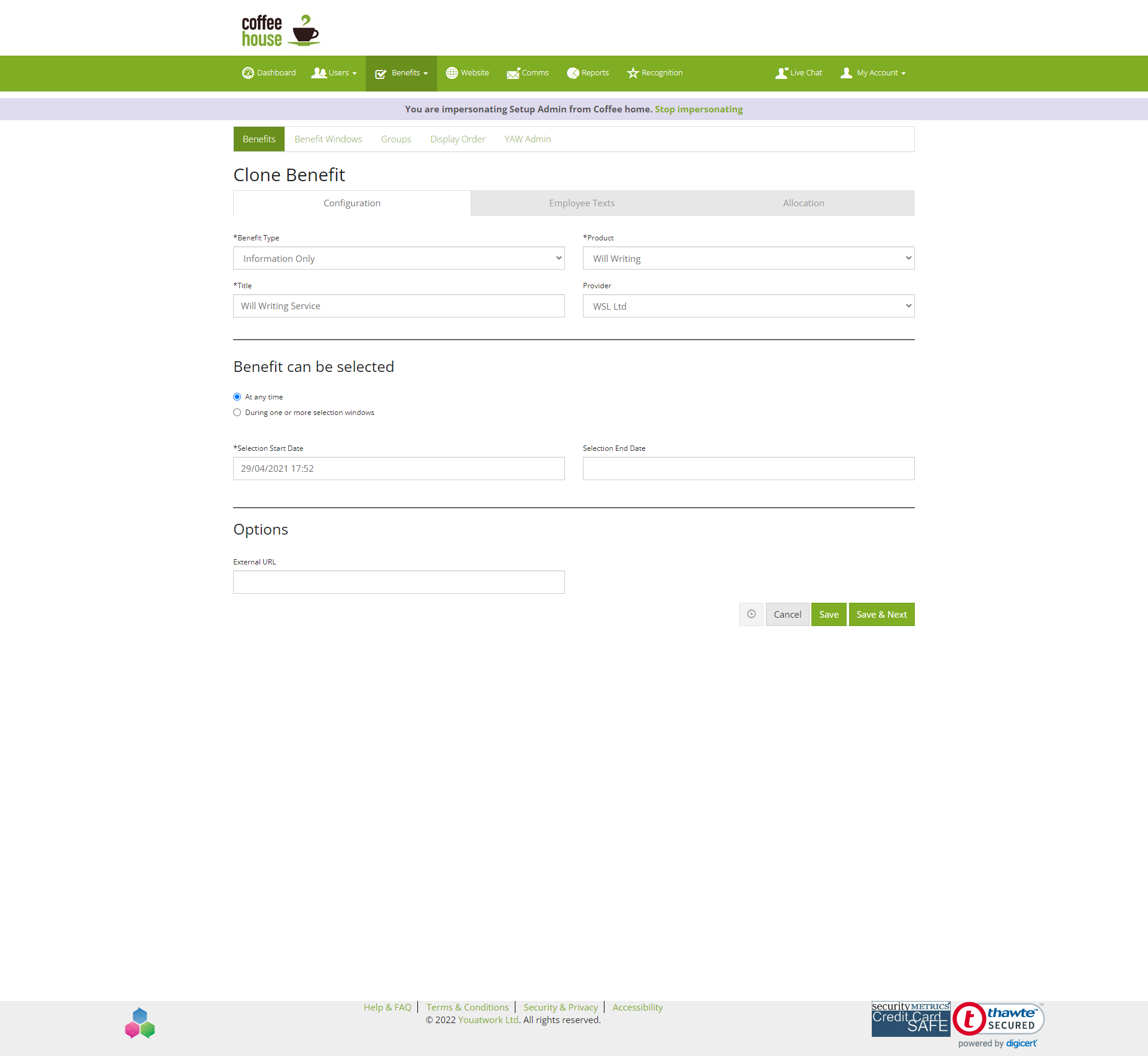
An information only benefit has text and images about the benefit, but no costs shown or values that a user can select from on this benefit. This type of benefit is useful to use when you have a link to a secondary site where the application process is for the benefit.
For example, will writing benefit gives all the information on what the benefit is and what the costs are. If the user wants to use this benefit, they click on the link provided in the benefit text and sign up through the provider site.
To create this type of benefit:
When creating the benefit enter the benefit type as information only and enter the rest of the details of the benefit. After filling in the details of the benefit continue to employee text and allocation and save the benefit.
Example: Motor assistance scheme, total cycle assist, total property assist, will writing service
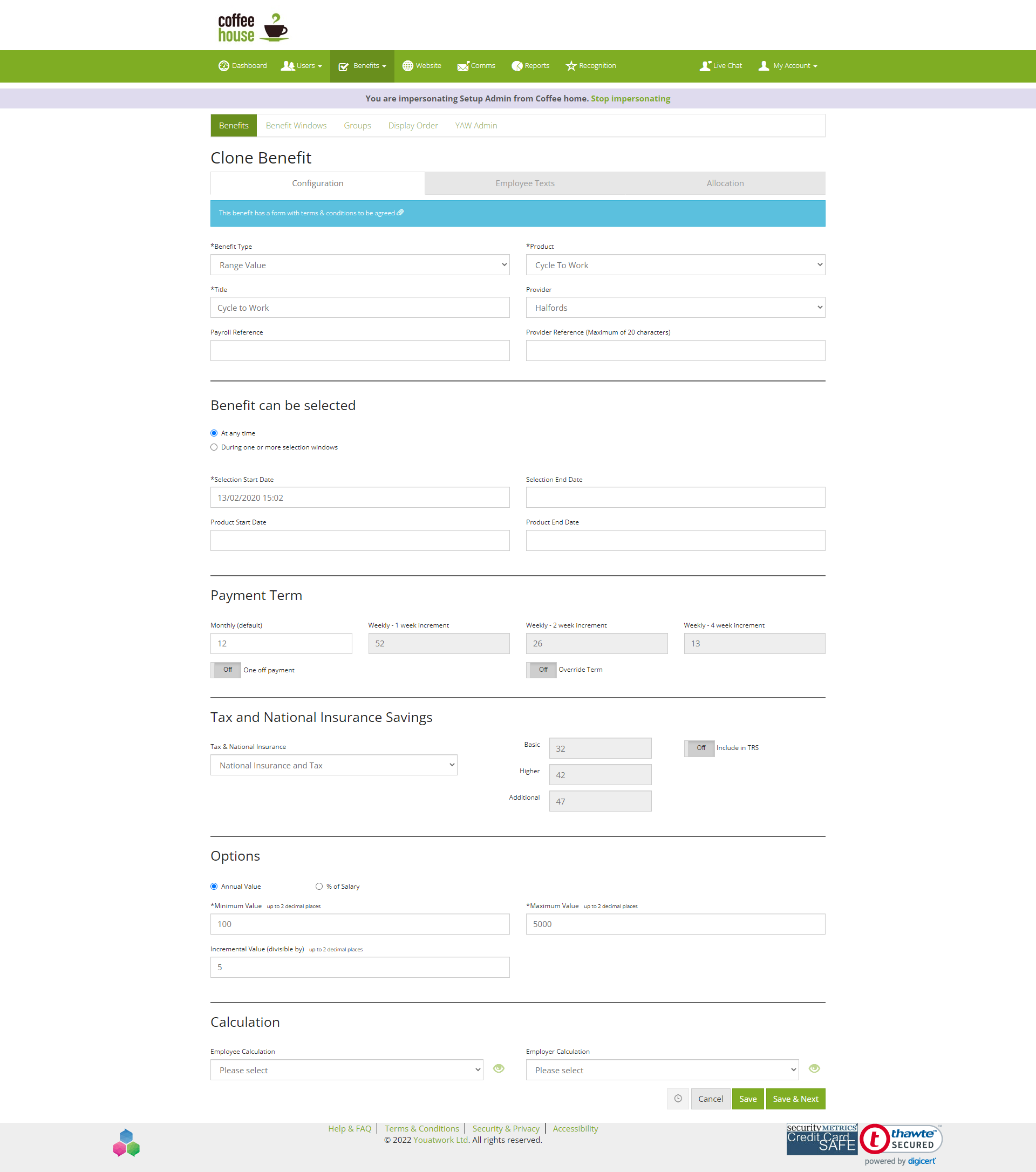
Range value
There are two options for a range value benefit: annual value or percentage of salary.
- A range benefit has a minimum and maximum amount that the benefit costs, this would be used for cycle to work benefit.
- A percentage of salary minimum and maximum percentage that can be taken from the salary, this would be used for pension benefit.
Range value for cycle to work as it gives the options to employees the amount they want to spend on the benefit. For example, you set the range from £100 to £1000 this allows the user to choose between the range.
Example: cycle to work, motorsave, techscheme, gymflex
To create this type of benefit:
When creating the benefit enter the benefit type as range value and enter the rest of the details of the benefit. When you get to the options section either click on the actual value or percentage of salary button. Then add in the minimum value, maximum value, and the incremental value you would like for the benefit. After filling in the details of the benefit continue to employee text and allocation and save the benefit.
Dropdown
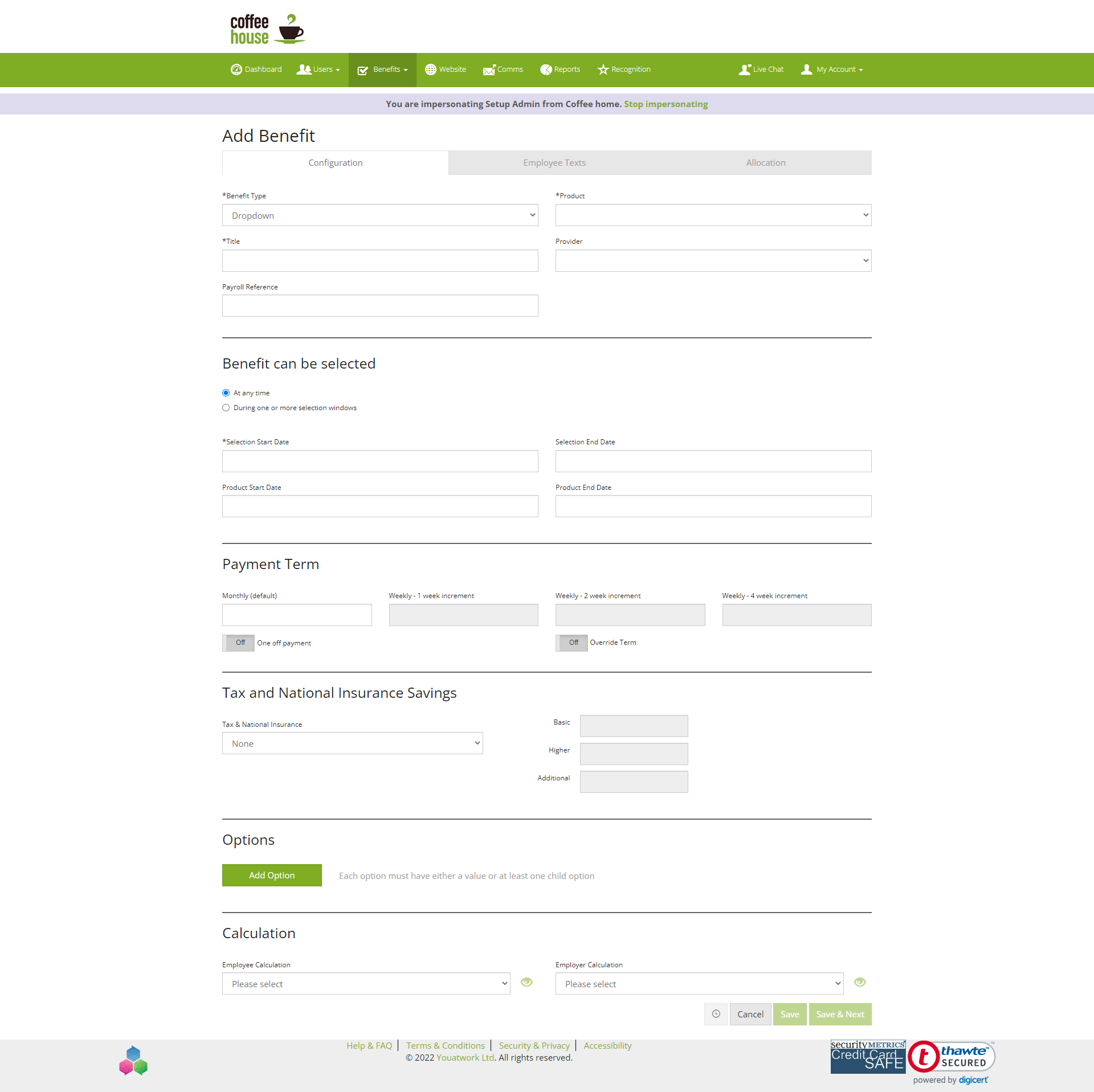
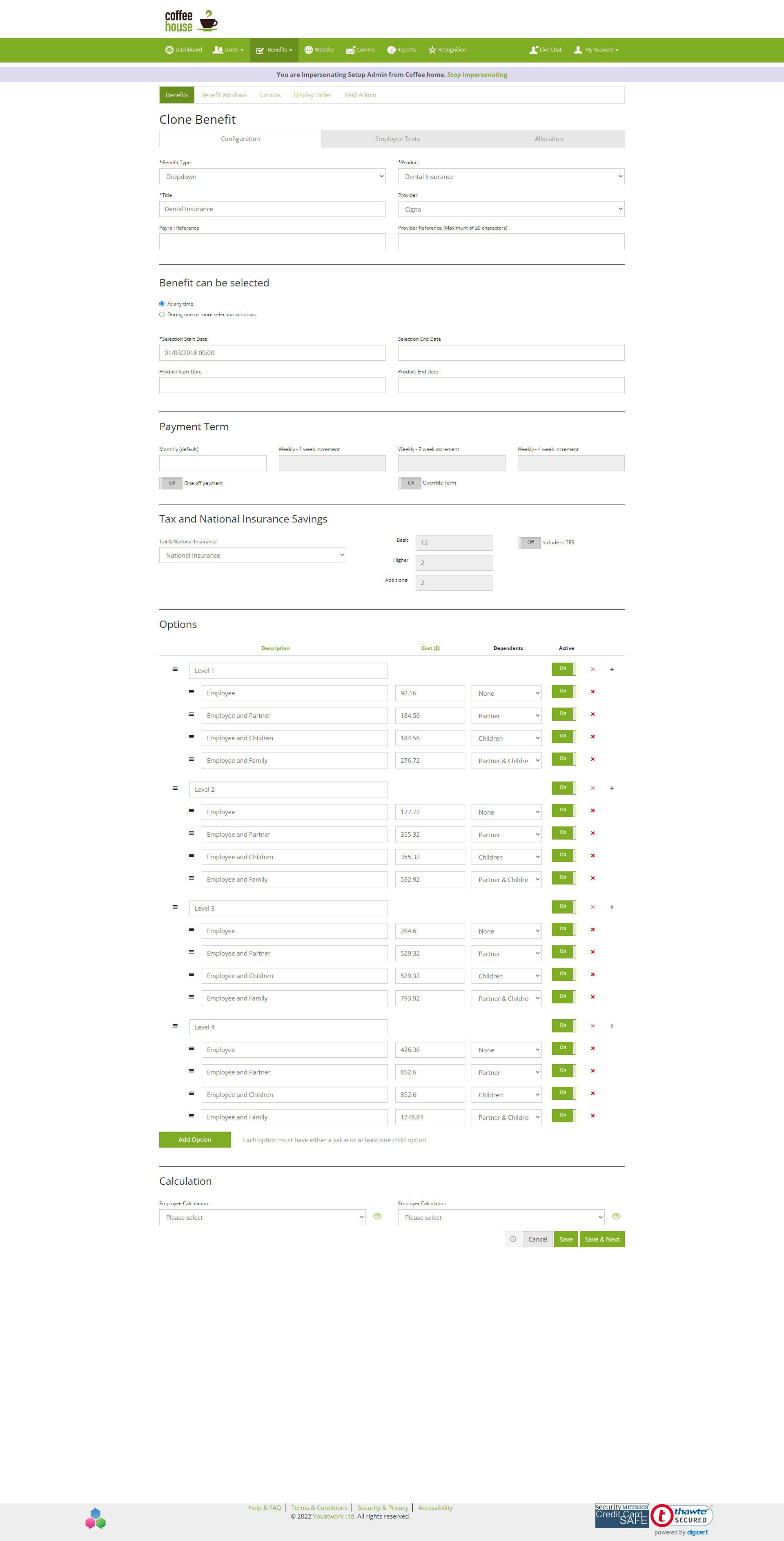
A dropdown benefit uses a fixed cost to work out the cost of cover in the benefit. A dropdown benefit provides many options to choose from and shows the costs of each option.
An example of dropdown benefit is dental insurance. The options to add the level of cover and if the employee would like to add dependants is available to choose from with the dropdown.
Example of types benefits: health screening, health cash plan, dental insurance
To create this type of benefit:
When creating the benefit enter the benefit type as dropdown and enter the rest of the details of the benefit. To add in the dropdown details when you get to options there is a button ‘add option’ click this to then add each option. To add more dropdowns you click ‘add option’ and to create sub level you can click the plus button which is found next to ‘active’. After filling in the details of the benefit continue to employee text and allocation and save the benefit.
SSO – Single sign on
A single sign on benefit can be created the same way as an information only benefit is created However, the benefit will be linked to the benefit providers website and allows the user to move from one site to the other without having to login twice. To create a SSO contact the implementation team to help with this.
Comments
0 comments
Please sign in to leave a comment.