YouatWork offer a standard range of email communications that can be sent out to your employees. The content of these can be edited if you have knowledge of HTML.
Warning: clients amend the email communications at their own risk
To amend an image
A prerequisite is that you will need the "Comms Manager" admin role in order to start this process.
We recommend using an image width of 560px, as all of our email templates are created for 560px width and use CSS classes to be responsive for different devices, such as mobile and tablets.
Depending on the email communication you are editing, there could be multiple images - in this guide we will show how to amend the footer images only:
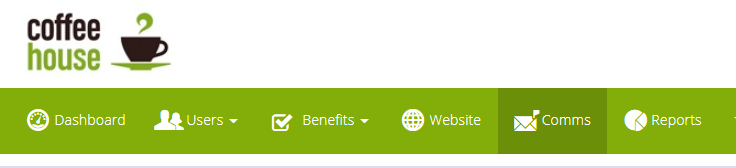
- From the Admin Suite, Navigate to the "Comms" admin page.
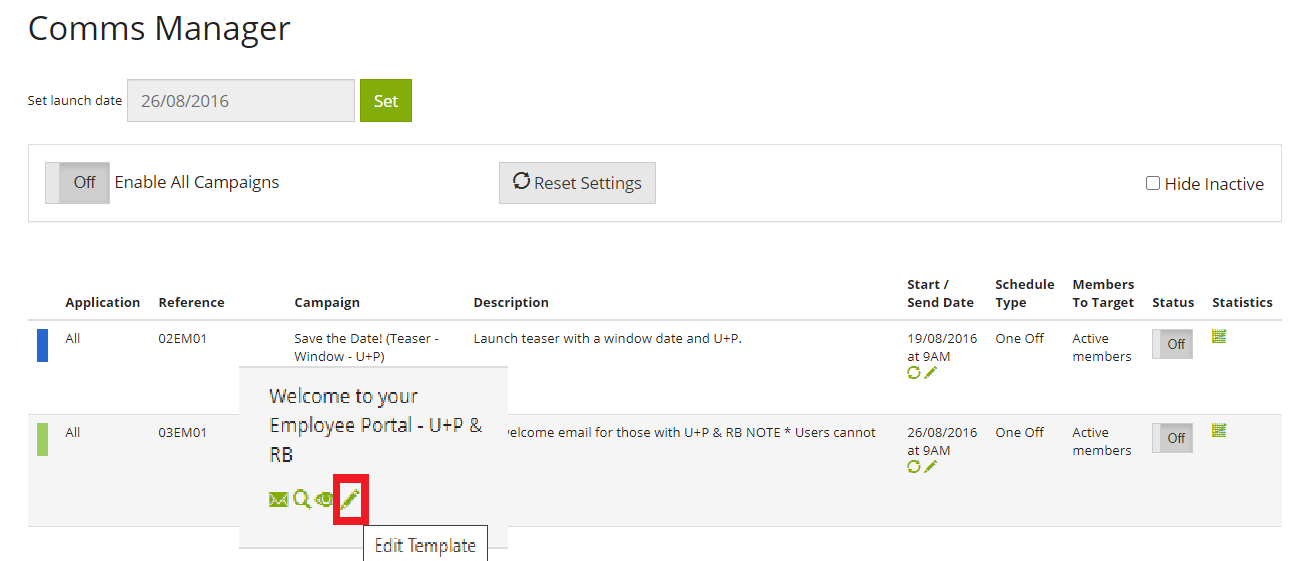
- Click the edit pencil, on the communication template you wish to amend
- You will now see the available placeholders that act as mail merge fields and the email content. Navigate down to "Email Content" and expand the text area to begin editing
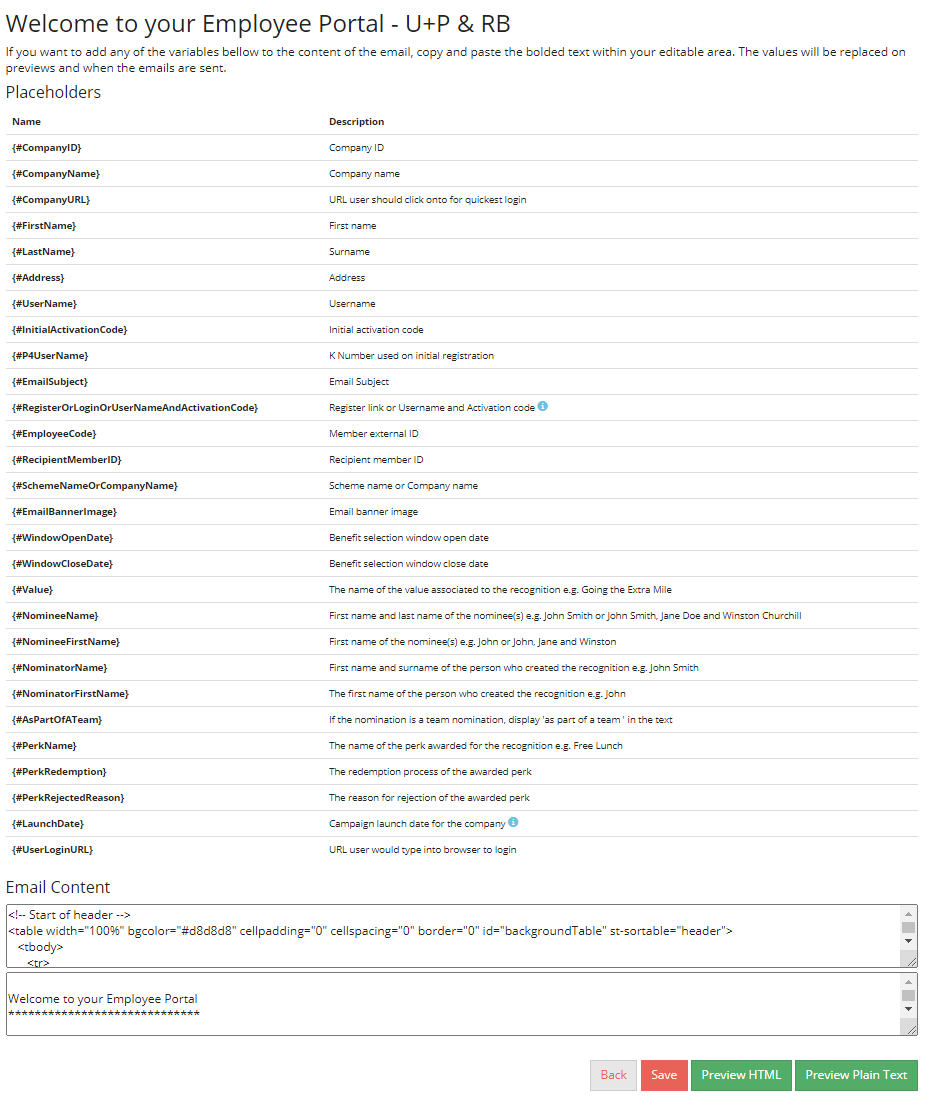
- Note, there is a preview button to see how it looks whilst editing - this works without having to save, but remember to save when you are finished. If you do not like your changes, simply exit the page without saving then the content will return to it's original state
- Within the "Email Content" area, you will find all of the HTML for the email template; the footer image we are focusing on in this article is usually found at the bottom of the Email Content, however, this can vary per template. In this example, the footer is clearly marked out with comments <!--Start of Footer--> and <!--End of Footer--> , and the <img> tag is easy to find.
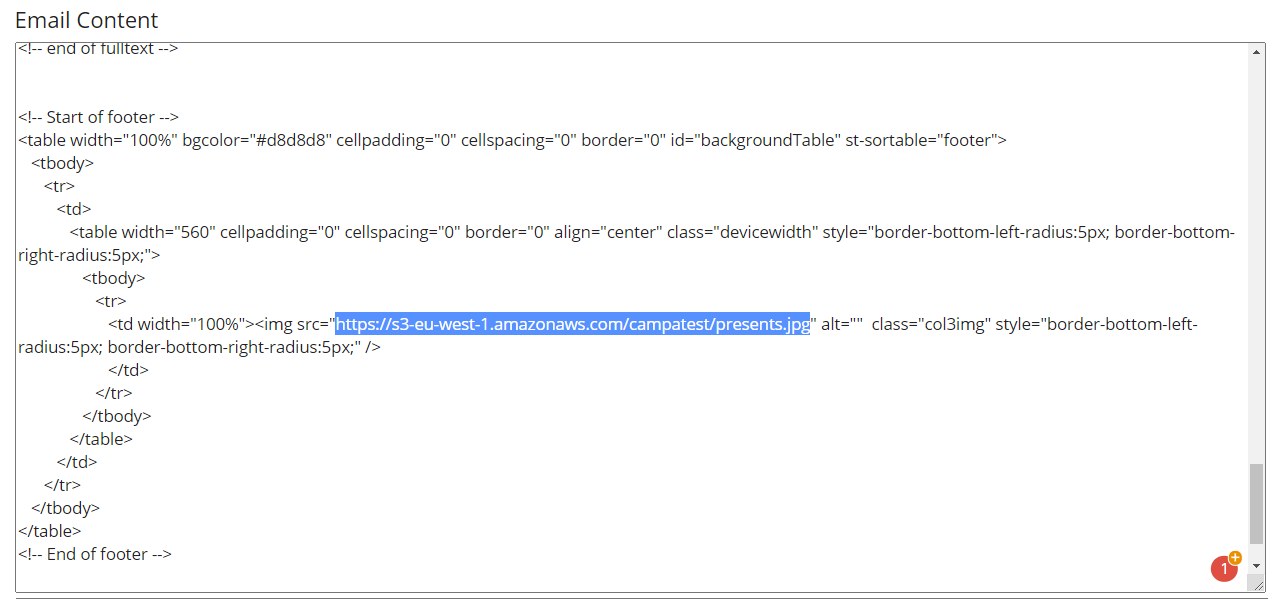
- Simply replace the <img src="image address here"> with address of where your new image is hosted and press the preview button to test how it appears
- Please keep the <img class="col3img"> untouched, this is used for mobile responsiveness - and if your image is 560px wide, it will resize automatically across different sized devices
- Once you're happy with your changes, press the save button!
Comments
0 comments
Please sign in to leave a comment.