You have an email set to go out, but you need to bring it forward or put it back for whatever reason...within a few simple steps you're able to choose a new date and time for the email, disable it completely until you're ready to send it or re-schedule it again as a reminder.
Requirement: Clients require the "Campaign Manager" role in order to amend these; if you don't have this already, please contact your main administrator or your account manager.
Let's begin!
From the admin suite, head over to the Comms area.

You'll then be greeted with a list of email templates, that have been sent or are due to be sent out in the future. Find the email you wish to change the date or send time for, and Disable the email by clicking the status toggle.
Important: In order for the date and time change to take effect, you must disable the email first

Once you have disabled the email you can change the date or time of the email. Click the edit pencil, and a pop-up window will appear allowing you to choose the new date and time.
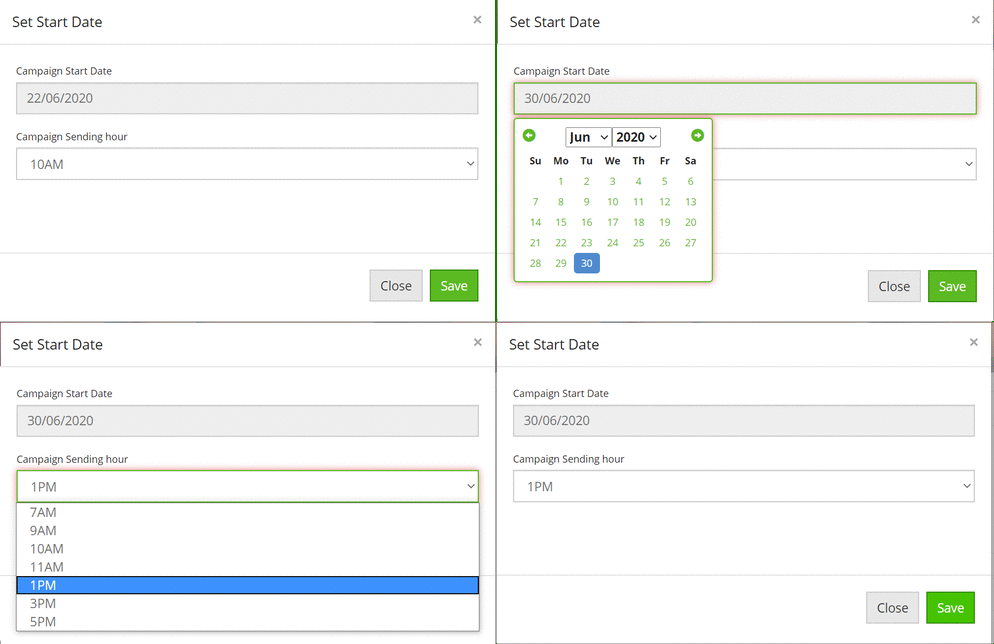
Once you have chosen your date and time, remember to enable the email again!

Comments
0 comments
Please sign in to leave a comment.