You've enabled the app, setup your account and created an appointment. Yay!
Now it's time to link the appointment to the You At Work portal so employees can start using the feature.
To do this you first make sure you have copied the link from Calendly for the appointment you're trying to show on Youatwork.com.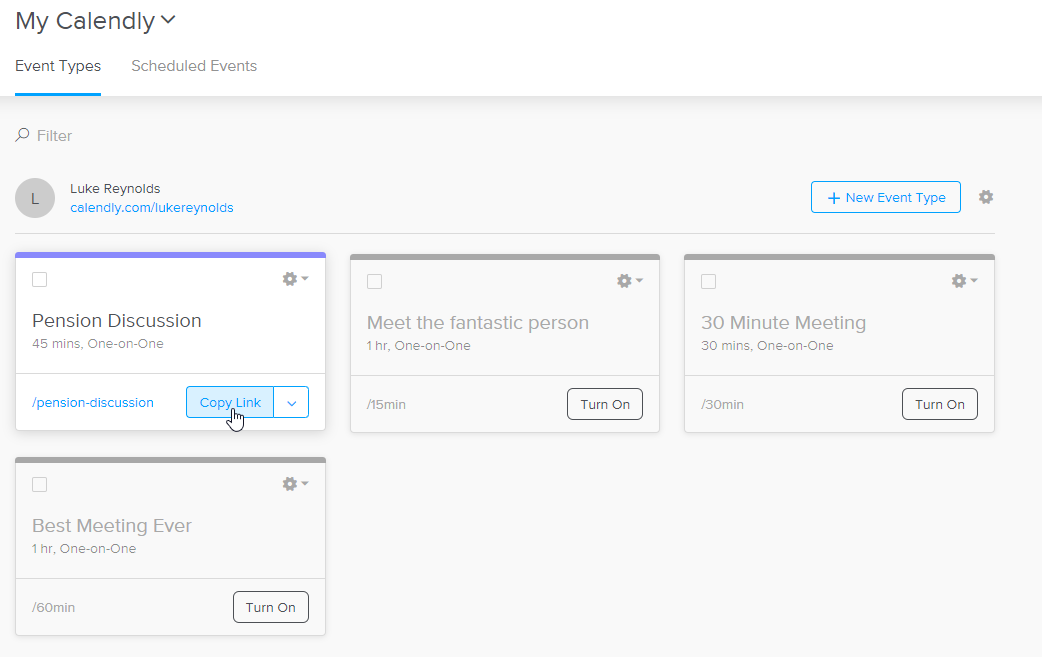
Once you've got the link you'll want to head back to our website management section of the admin portal. From here, scroll down to appointment bookings and click on View/Edit Settings.
Click on bookable events, add an event name and then paste the link to the appointment that you copied earlier from Calendly as seen below:
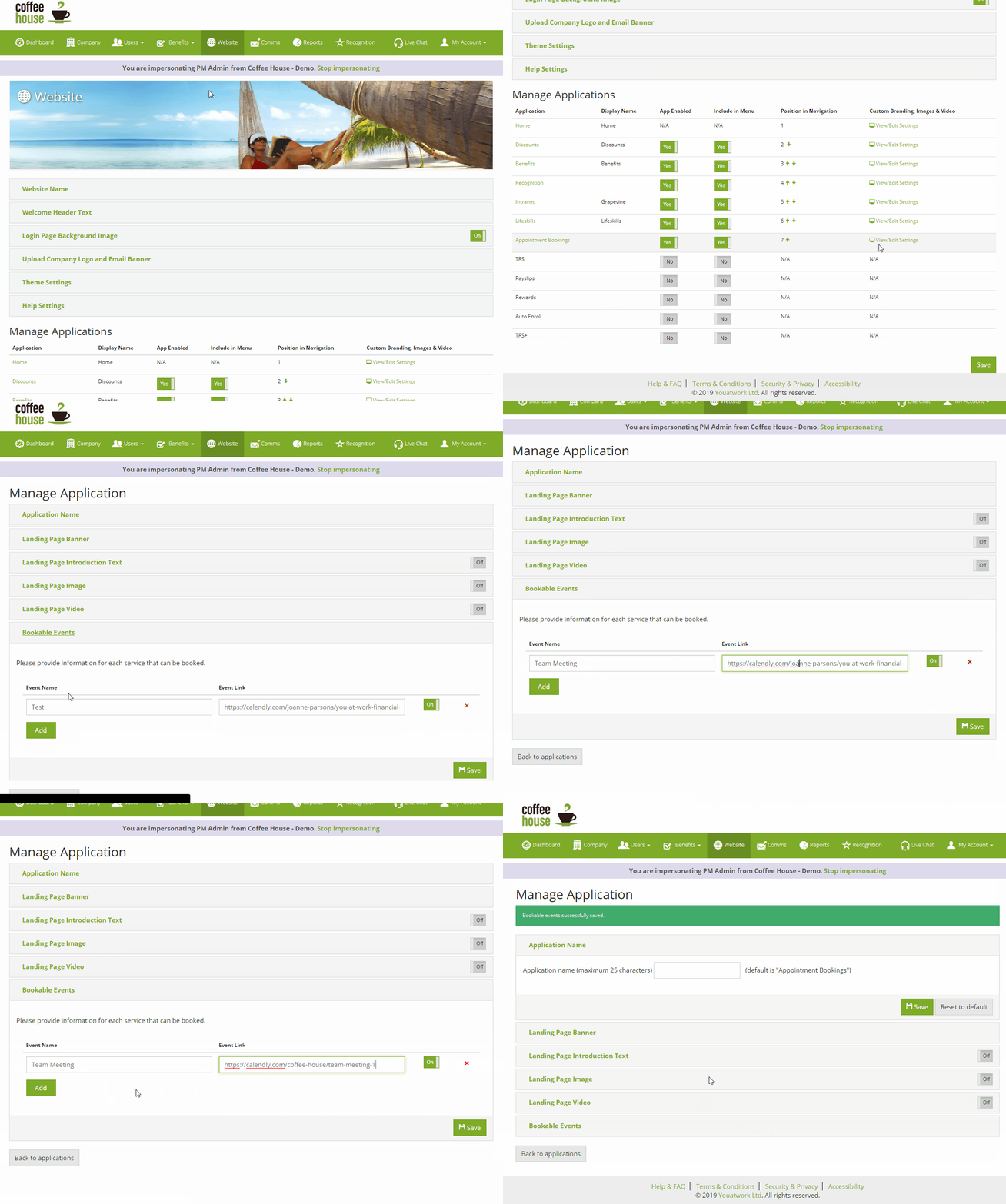
All done! You are now ready to start creating and booking meetings.
Below is a short demonstration of how this feature works:
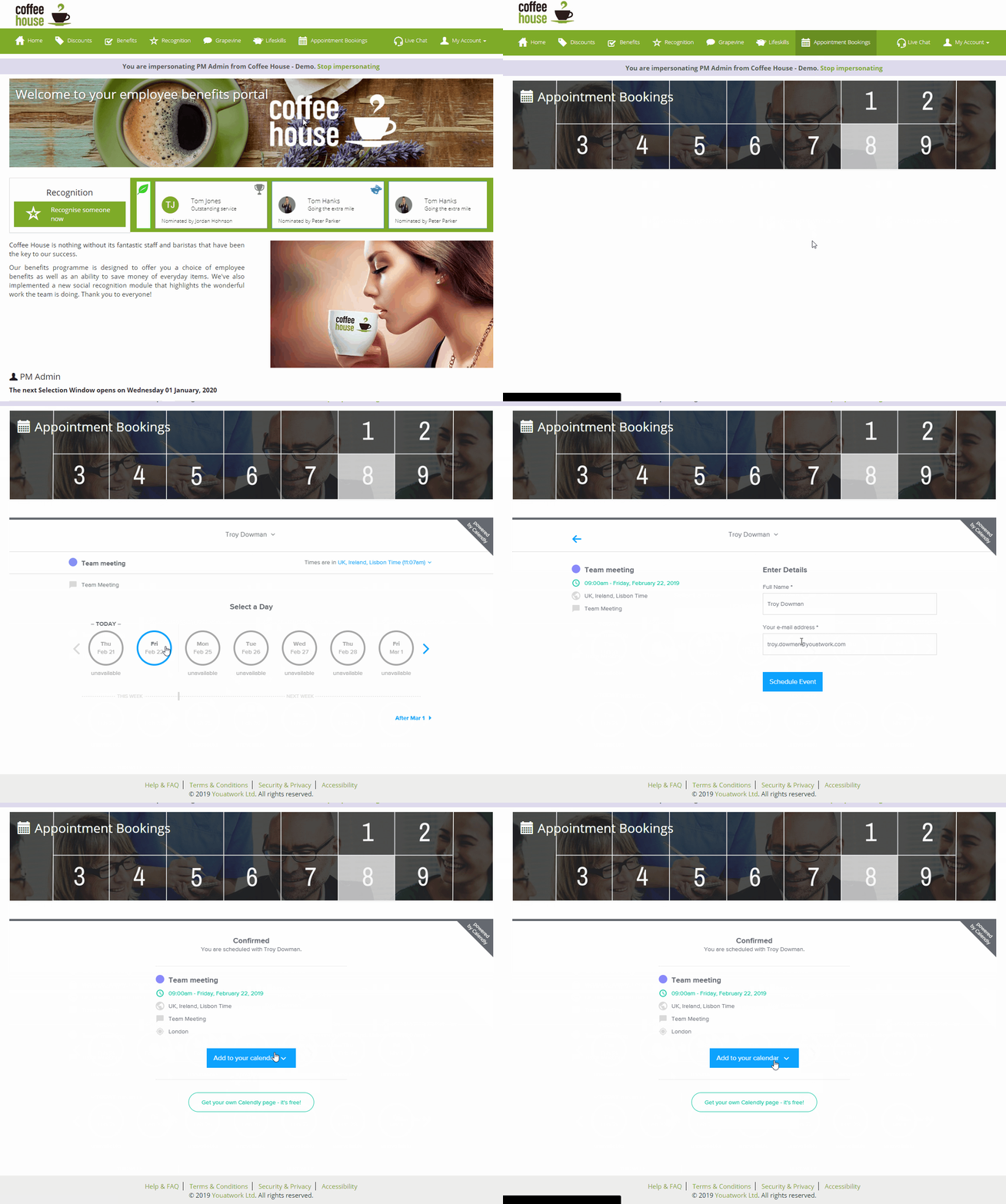
Note. You will receive an email every time someone books/cancels a meeting with you, you can edit these setting on the Calendly website.
Comments
0 comments
Article is closed for comments.