This article specifically covers what actions are required during and after a benefit selection window.
- Learn more about approving benefit selections.
- Learn more about what benefit windows are and how to test them
During the Window
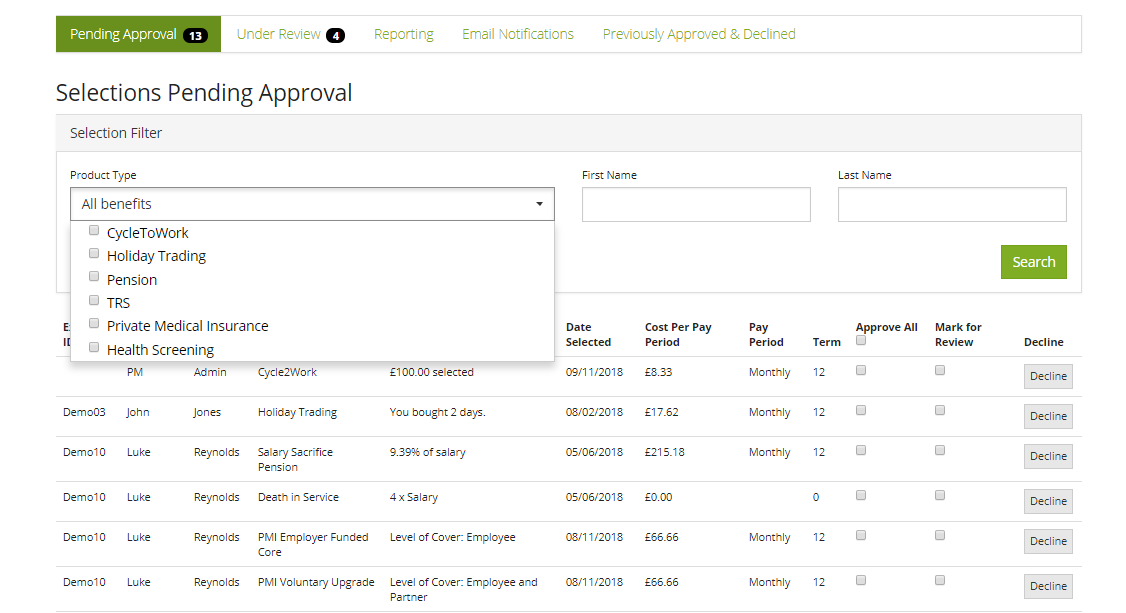
In a selection window, you may wish to amend your notifications settings so you do not get hundreds of emails! You could set them to daily, or outright disable them; just remember to change the setting post-window! Whichever email setting you choose, you are still able to log-in during or after the window and approve any selections. Note that you can filter the selections by benefit using the ‘Product Type’ drop-down menu, so only the selections for a particular benefit are displayed. This is also a great way for you to review and monitor take up at any time during a window.
After Window Closes
After the window closes, you will need to approve/decline all pending selections (feel free to approve these on an ad-hoc basis throughout the window) for us to compile and prepare the reports for the providers/brokers. Warning: Any delays in approving the selections will cause us delays in generating reports for the providers/brokers
If you have employees that have not made a selection that must be forced through, you can now make selections for them using our new offline selections tool.
Payroll reports can be generated whenever you need from the 'Reporting' section in 'Benefit Selections'
Learn more about benefit selections and the functionality available here
Any Question? Contact us!
Comments
0 comments
Article is closed for comments.