To Renew a Scheme, please make sure you have the correct admin rights on the account you are using and navigate to the Benefits Manager:
My Account > Admin Suite > Benefits >Benefit Manager
From here, please navigate to the Benefit Windows page via the menu seen here:
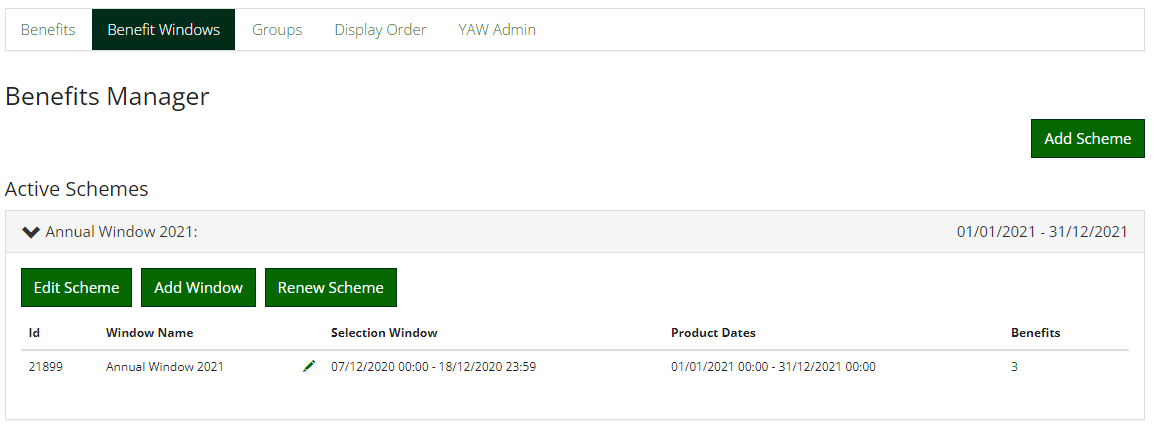
To renew an existing scheme, click on the scheme in the dropdown list and select renew scheme, as long as all the selections from the previous scheme have been completed, this will bring up the form to create a new scheme. (If there are outstanding selections, you will have to manage these before renewing the scheme)
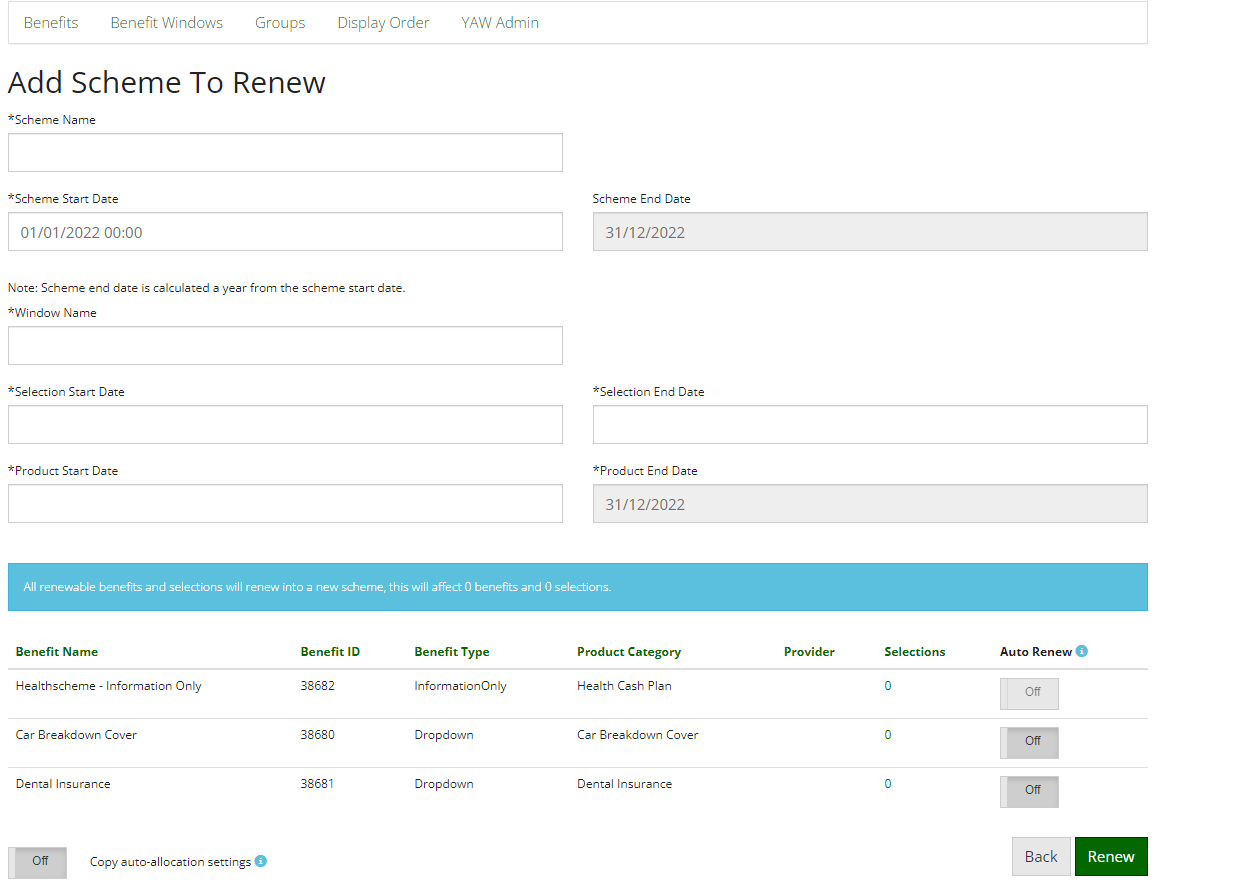
When you renew an existing scheme you will see the page above. First, you need to complete the scheme information and then you will need to add the benefits into the scheme.
Complete the form, by adding the new scheme name, start date and create a window to go into the new scheme.
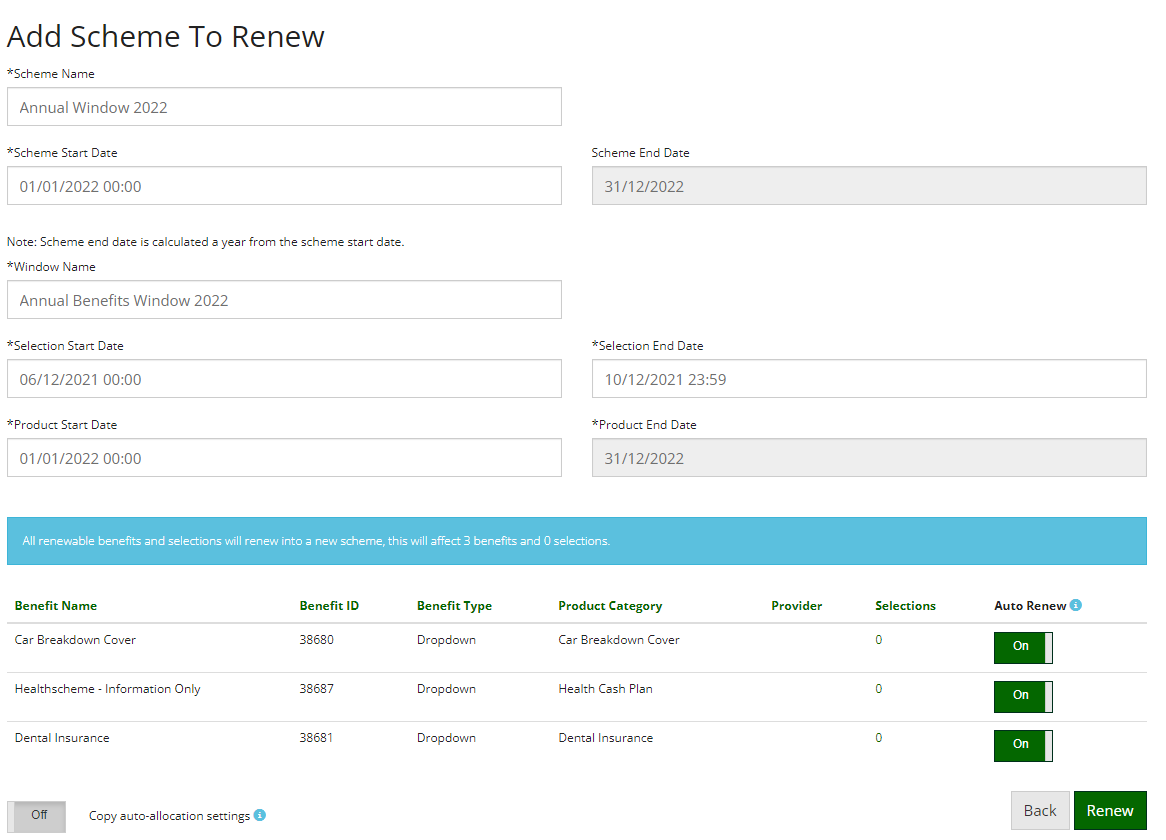
Once the information has been added as seen above, you then go to the bottom of the form to select which benefits you would like to be renewed. In the image above all the benefits have the auto-renew button turned on, this means that if a user has made a selection on a certain benefit it will be carried over into the next year.
For example, if a user has selected Level 1 dental insurance for the year 2021 and when the benefit has been renewed that user will have Level 1 dental insurance for the year 2022.
After you have completed the form on the scheme and chosen which benefit to renew, you then click the renew button to complete the process. You will then see that the window has been renewed as shown in the image below.
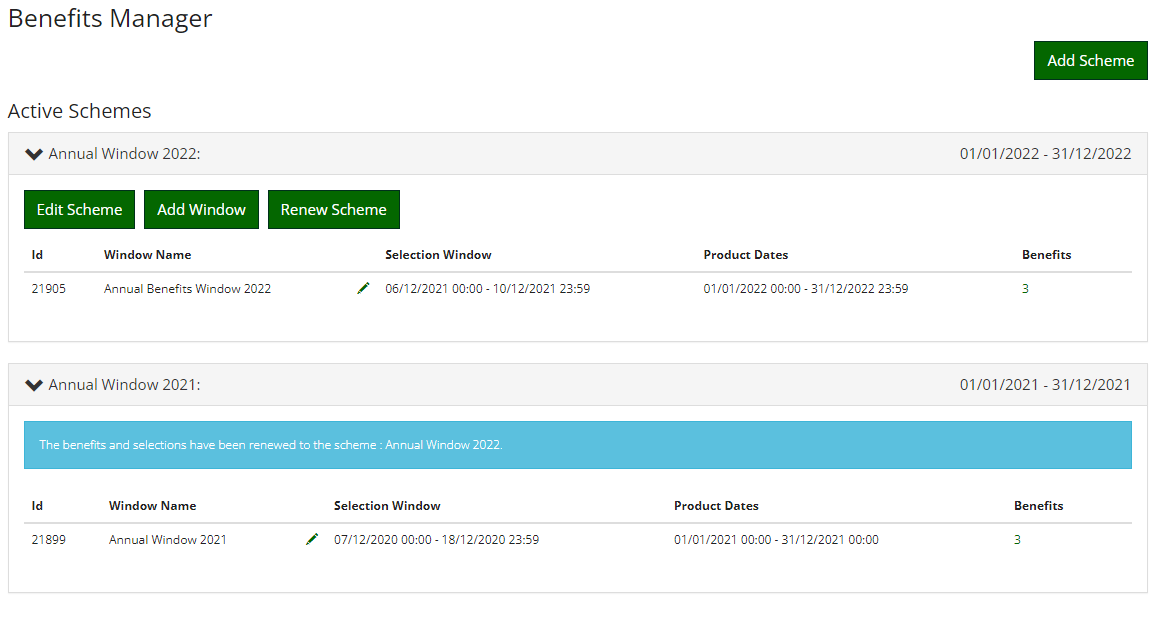
You have now successfully renewed your benefits scheme. Now you will have the new benefits to change text, images and costs for.
Comments
0 comments
Please sign in to leave a comment.