So, you have an open Selection window but one of your employee’s information has changed, is incorrect or the benefit is not displaying as it should for them. This article explains how to make the changes and things to look out for after implementing the changes in a selection window.
If the employee has already made a selection before implementing the changes, the costs are locked to the original data and you will need to contact us to remove the original selection. If the employee has not made any selections, any changes to the user that will affect eligibility/allowances/costs will take place immediately for the employees to choose.
For all these fixes you will need to follow these instructions to get to the ‘Edit Users’ page. From the Admin Suite, press ‘Users’ from the Menu. Then Select ‘Search for a User’ and you will be directed to a search tool that will allow you to locate users in your organisation. You can filter by name, email, Payroll ID, User ID and Date of Birth.

Locate the employee you are looking to update and click on their User ID, this will take you to their Personal Details/Employment terms.
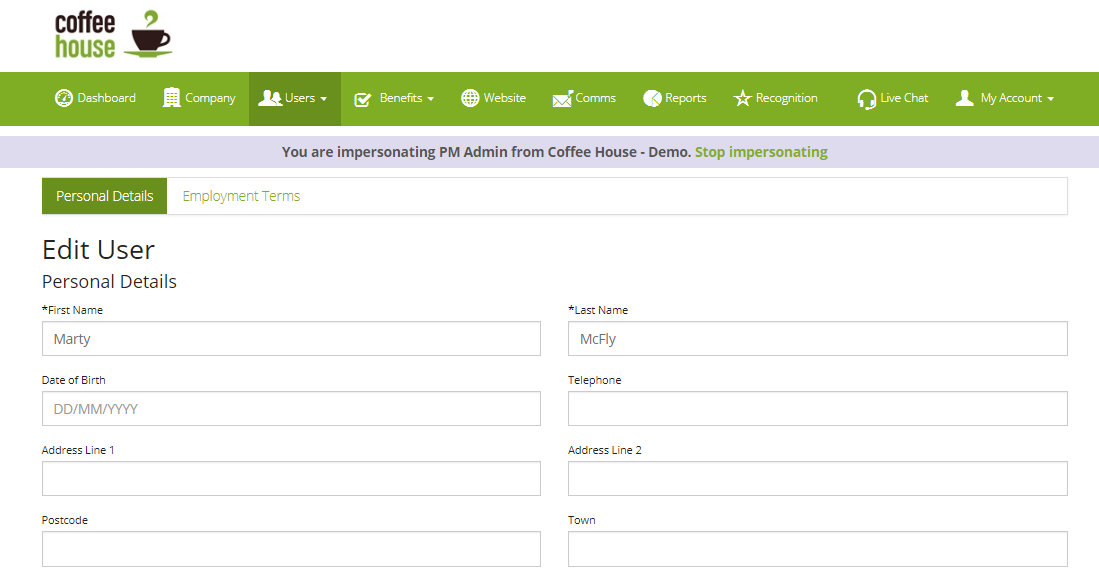
Now you’re on the right page, follow the instructions below to edit the User information.
These are the common changes that are made:
- Updating Member Group
- Update Salary Info
- Update User’s Flex Allowance
- Updating Holiday Eligibility
-
Updating a User’s Member Group
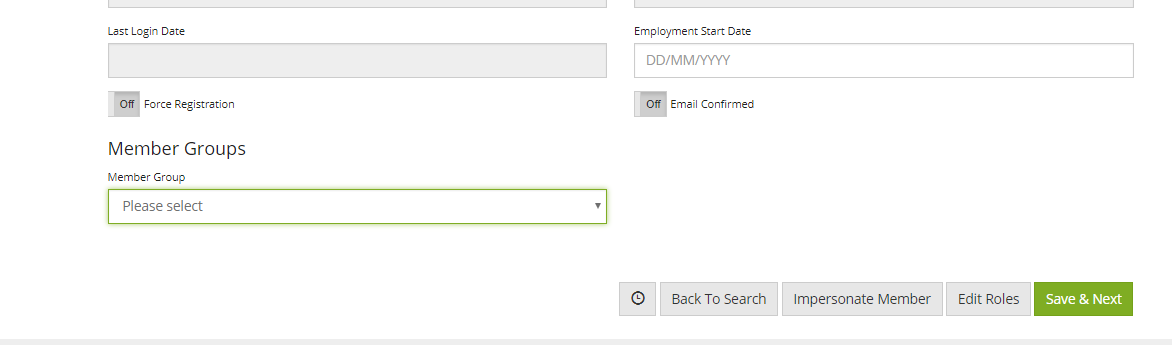
Updating the group will mean the user is now eligible to benefits in that group and will automatically show the new benefits within an hour of the changes being saved. However, it will not remove any benefits that were selected when they were in the old group. This is due to complications in removing the visibility of a benefit not available in the new group if it was already selected. You will need to inform us if a member is moving groups in a window, so we can remove benefit allocations from the old group and check if any selections were made.
-
Updating a User’s Salary
From the edit User page select the ‘Employment Terms’ tab. Here you will see a Salary details section where salary & pay frequency can be updated. Ensure that you have selected an ‘Effective date’ at the top of the page before saving the changes otherwise the salary data will not update.
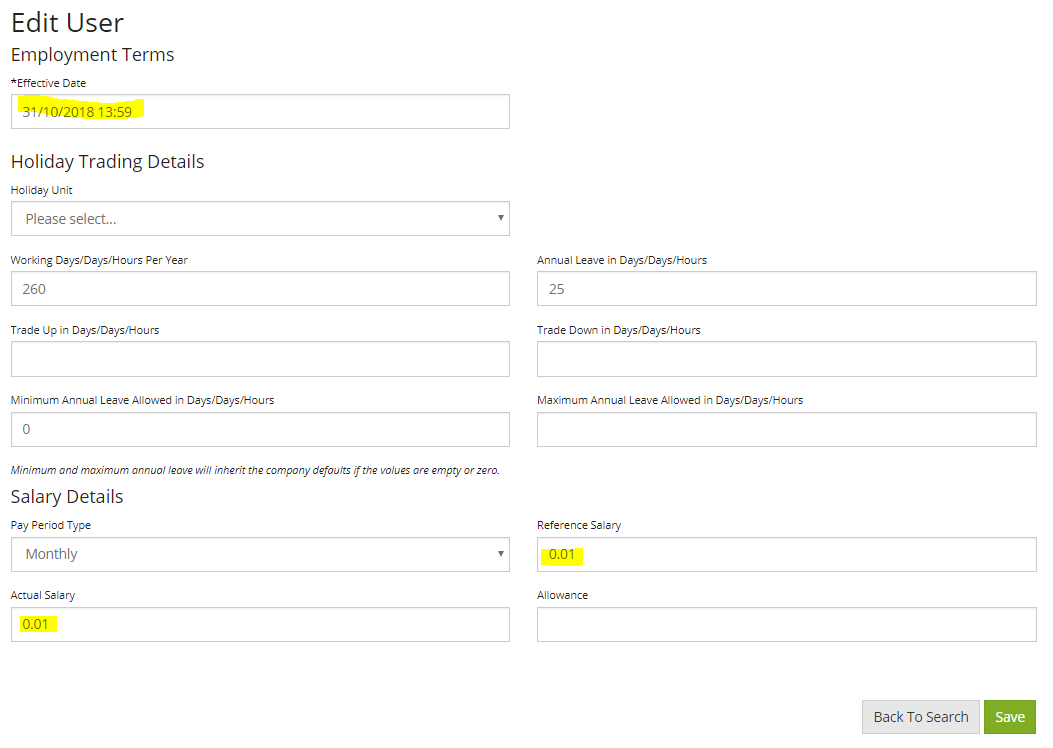
If you have any benefits where the cost is dependent on salary, and the salary is changed, any existing selections will not be automatically updated. Contact us if you need to update a User salary during a window so we can review if any actions are needed.
-
Updating a User’s Flex Allowance
This can also be updated on the Employment terms page. In the salary details section, you will see a box for allowance, ensure the ‘Effective Date’ field is correct and then update the allowance here.
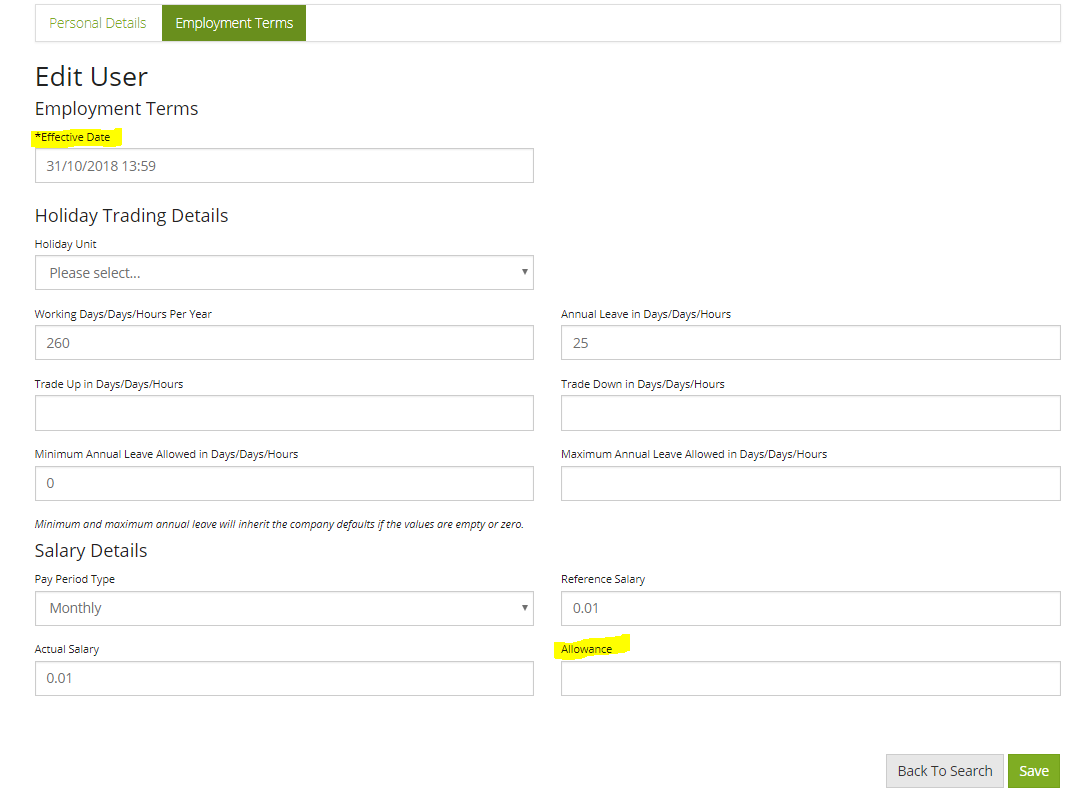
Updating allowance can be done at any time however you will need to inform employees of changes to the allowance as there are no automated notifications for this.
-
Updating Holiday Eligibility
On the Employment terms page, you will see a section called ‘Holiday Trading Details’, here you can update the holiday eligibility. ‘Trade Up’/ ‘Trade down’ in days/hours refers to the number of days an employee can buy or sell.
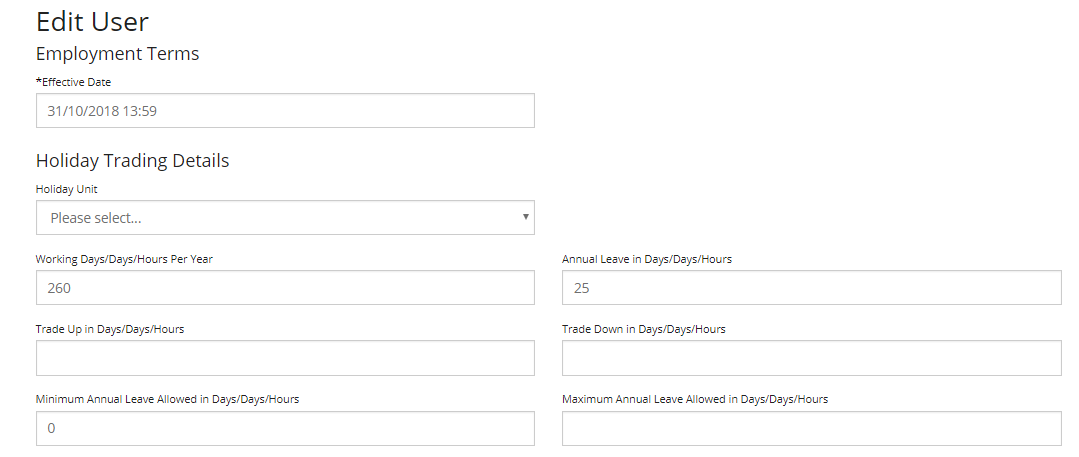
‘Minimum’/ ‘Maximum’ Annual Leave allowed refers to the max/ min number of days an employee can take as leave. This is the normal annual leave +- the maximum number of extra days the employee can buy or sell.
These are the most common changes that are made but if you have any questions or other changes to make, contact us!
Comments
0 comments
Article is closed for comments.