Creating a window within a scheme year couldn't be more simple. Whether you're creating a window for new joiners or just a general all staff mid-year window, it's only three simple steps once you're into our admin suite!
- Name the window and set its' dates
- Choose which benefits from the annual scheme to be included
- Choose who can see the window
Where do I find this option?
Within Admin suite, navigate to Benefits > Benefit Manager > Benefit Windows
Find your current scheme, and to start simply click "Add Window"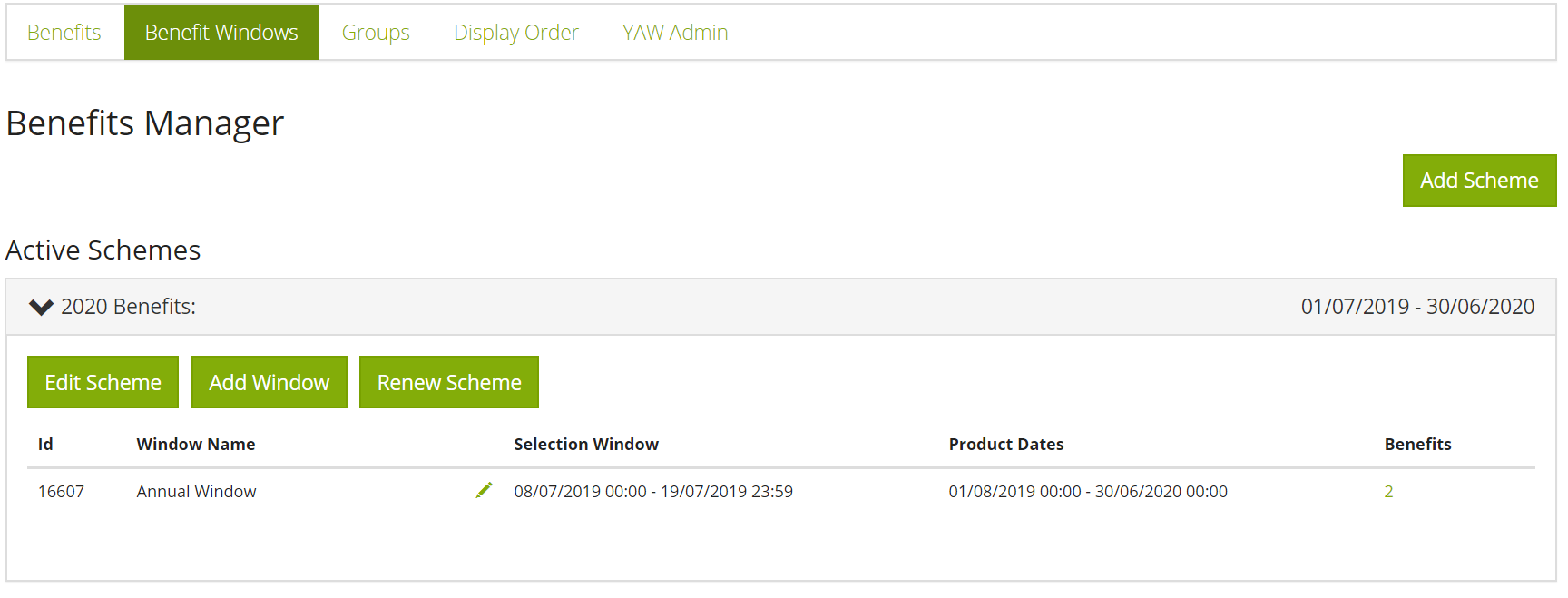
Let's begin:
The window creation page can be split into three areas:
- Name the window and set its' dates
- Choose which benefits from the annual scheme to be included
- Choose who can see the window
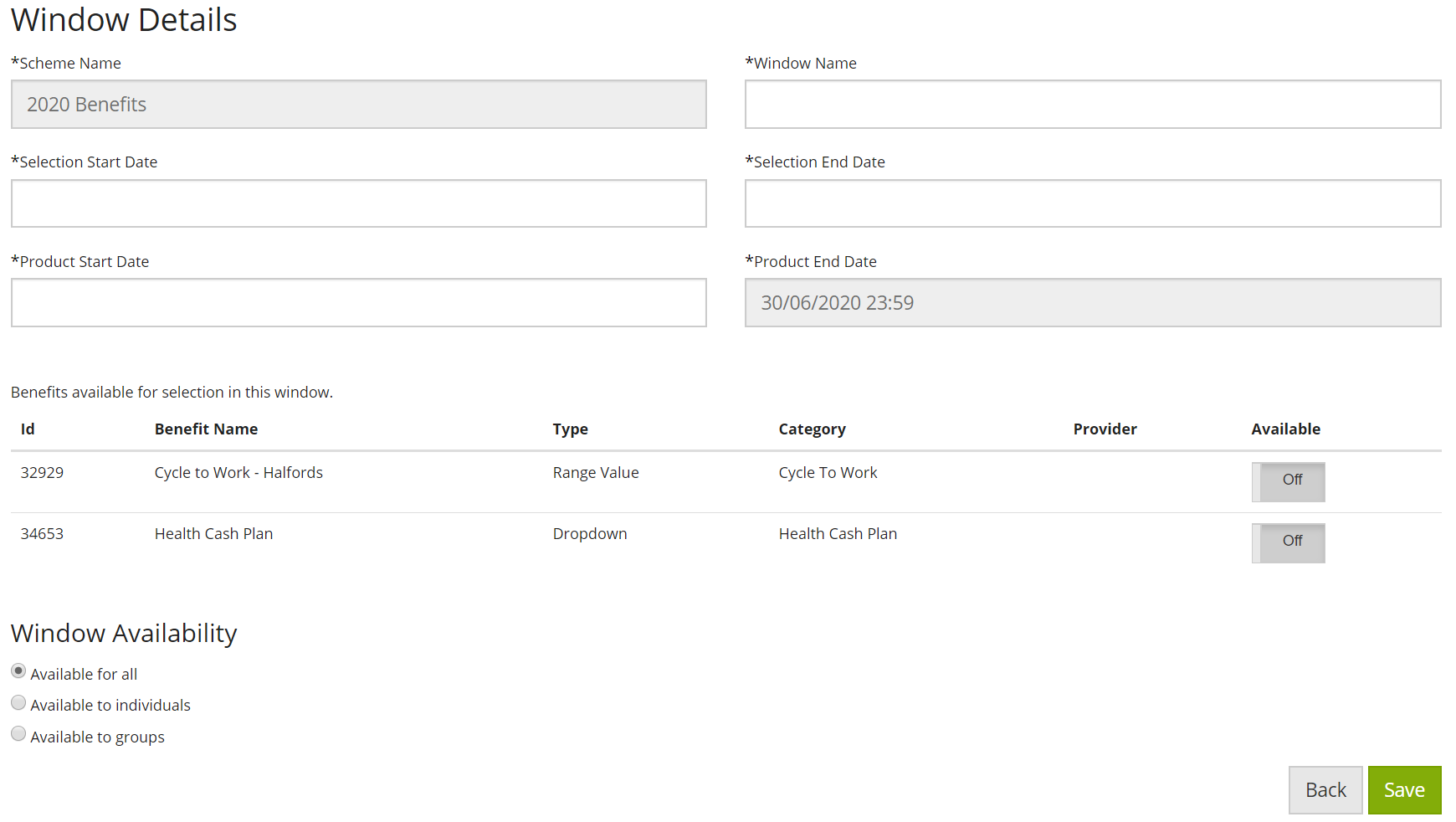
Step 1, you give your window a name and set the dates.
Window Name: This appears on the benefits page to the users, so try to give it a nice name that is obvious what the window is for "October Starters Window" for instance
Selection Start and End Dates: The Date and time the window will start and close
Product Start and Product End Dates: These dates are linked to the annual scheme.
- Product Start Date:
- The product start date must be the 1st of a month and after the selection end date, this is to work with prorated or monthly cost benefits like insurances, to show the employee the correct cost they'll be paying for the reduced time they'll be paying for those benefits.
- Product End Date:
- Your product end date is fixed, and will always finish at the end of the scheme, ready for renewal. This means someone who signs up to a benefit mid year, will be able to re-select again at the next year's annual window without issue.
Step 2, choose benefits from the annual scheme to be included
You at Work will have setup your annual scheme for you as per your instructions and signoff. However, often a mid-year or new joiner window may not need to include all of the benefits available in the annual window; here you simply toggle to choose which benefits to include in this window.
Step 3, choose who can see the window
You have three simple options:
- Available to All Staff
- Suggested use: to be used for mid-term windows, allowing all staff to come in and have a 2nd chance to select benefits that they hadn't selected in the annual window
- Available to Individuals
- Suggest use: to be used for new joiners, or service anniversaries where existing employees now have access to more benefits than they had at the annual window because of your internal rules
- Here you get access to choose specific employees and with a simple tick give them access to the window, and another simple click to remove access to the window should you make a mistake or situation change
- Available to Groups
- Suggested use: you're a big company, and you want to open a window for a very large subset of employees but not others. You create a group first, put these employees into that group, then set the window to be available to this group
Is there anything I need to watch out for?
- Communications: no communications will be sent by the You at Work system for any window you create yourself; contact your engagement manager if you would like to discuss the option for us to do so
- Allocations to benefits: employees who have access to windows must also meet the original criteria set for each benefit, in order to see each benefit. For instance, if you have two benefits in the new window, one benefit for all staff and one for a senior management group, if the person logging to view the window is not in the senior management group they only see the one benefit available to all staff
- Post-window payroll reporting: you are obliged to log in and approve selections during or after the window, and run your own reports for payroll
- Post-window provider reporting: you are obliged to log in and run your own provider reports for benefits that are not introduced and managed by You at Work. You at Work have automated reporting on any benefit that we have introduced to you, therefore once you have approved selections made by employees, selections data will be with our providers within 7 days
Comments
0 comments
Please sign in to leave a comment.