New employees can be subject to an initial probation period of typically 3 or 6 months. During this period, they may not be entitled to any benefits or limited benefits.
How can I manage this on the Employee Portal?
There are several ways in which probation periods can be managed on the Employee Portal.
1. Ensure the webtext summary states that only employees who have passed their probation period are eligible to select the benefit.
2. Only upload new employees when they have passed their probation period.
3. Use Groups. Benefits can be allocated according to Group.
Example
Group A are all staff who have passed probation and are eligible to select all benefits.
Group B are new joiners who have been employed by the company for less than six months. These staff may be entitled to select some benefits or none at all.

Note: Following completion of probation, you will need to change newly eligible staff from Group B to Group A via a file upload (JLC “import users” which can be located under the Users menu) or if there are only a couple of users affected you can change the group for each user in the edit user page.
Editing an employee account
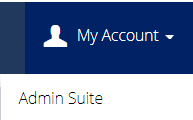
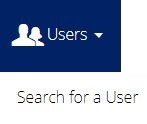
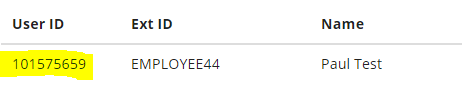
Click User ID to access the employee record
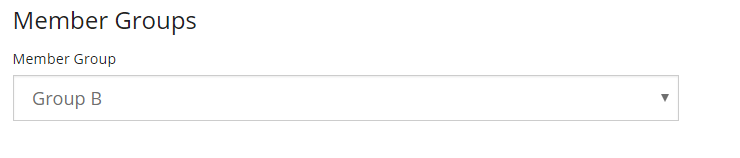
Scroll down and select the group
Click Save

You can edit the employee terms on the next page, if applicable.
To create/ access/ edit a group you will need the “benefit manager” role.
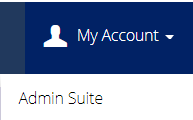
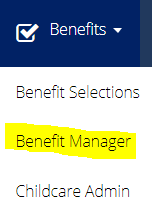
You will see another menu bar.

4. Manage this internally at the approval stage.
If an employee has been with the company a short time and has selected the benefit and completed the checkout process, the administrator can decline the selection giving a reason which will be emailed to the employee.
Employees within a probation period
Note: You can use one or more of the above options to manage probation e.g. Webtext summary wording and Internal management or groups.
Comments
0 comments
Article is closed for comments.