Sometimes you re-hire members of staff, and need to add them back to the system. You could simply create a new account for them, but if their previous account has a long history that you wish them to be able to access again, then you can reactivate their original account.
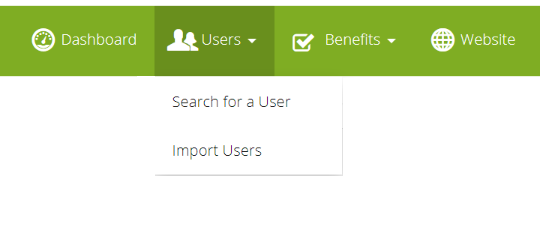
Starting from the admin suite click into "Search for a User". This will load your list of users.
You first need to ensure you have toggled to show inactive users- turn this toggle OFF. 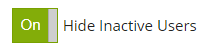
The list of users will then show leavers, with active = OFF.
To reactivate the user immediately, simply find the relevant user and click the Active toggle from OFF to ON. 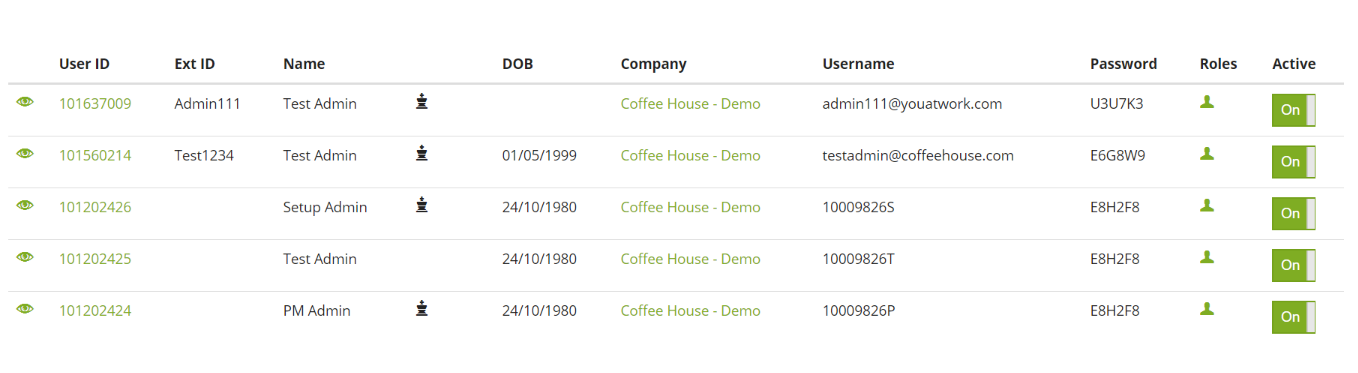
What happens if their payroll/employee number has changed?
Click on the userID of the member to get to the edit user page, you will then be able to amend the "Emp/Staff/Payroll ID" and save the page. 
Now your returning member will be active again and have their new id number.
Important Note:
If you do not change the existing member's Emp/Staff/Payroll id, and simply create a new user it will create a duplicate account. The user will then need to register again and loose all history from their previous account.
Comments
0 comments
Please sign in to leave a comment.