Your new Recognition module can create a fantastic culture within your workplace; giving employees the opportunity to say thank you to each other in a way that allows other colleagues to see.
You may customise recognition in many ways, including changing the reasons why people would say thank you to each other to help promote your company values. You may also add “Perks”(but these are off by default). You choose what the perks are - they could be anything from allowing an employee to park in the boss’s parking space, to a £50 voucher.
This guide aims to give you a quick insight into how to customise recognition; for a deep dive, head over to our full section of guides on Recognition
Standard Setup
We have set up the module for you already; it's ready to go straight out of the box. However, you can customise this in many ways, from changing the reasons why people would say thank you to each other, to helping promote your company values.

Getting to the admin panel for Recognition
All administration of the Recognition Module is handled from
"My Account > Admin Suite > Recognition"

How to change the "Program Name"
By default, we have called it the Recognition Program. If you can think of a catchy name that plays on your company name then feel free to change it!
Head to the Set-up Programmes tab, and you can change the name.
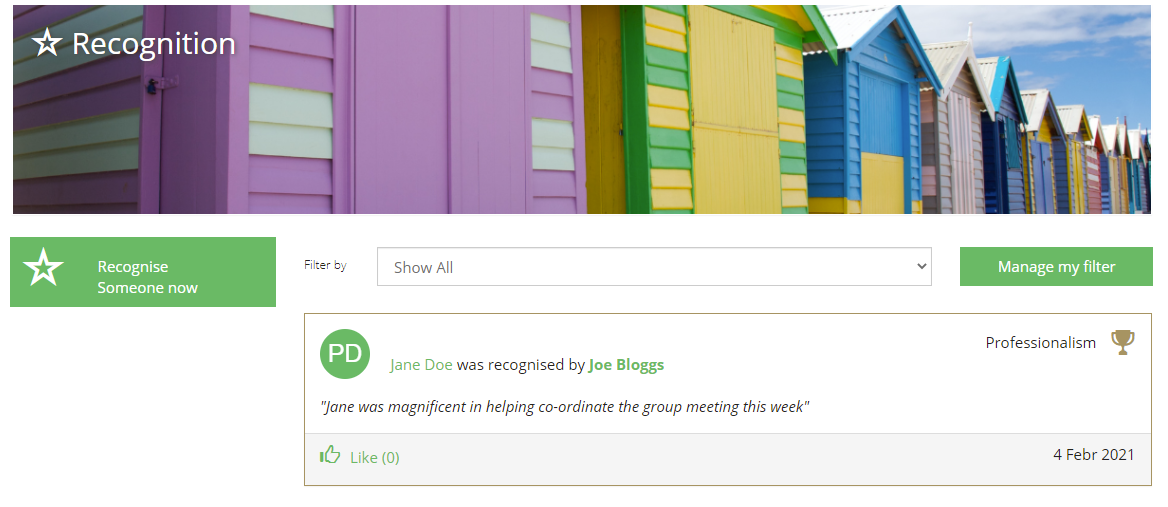
"Nomination button label" is the text employees see that entices them to click and start recognising; as shown on the below screenshot.
How to customise Values:
To edit these values; navigate to the values tab. From here, you can either edit or create brand new values.
In this example we will show how to edit; so click the edit pencil on a value to start the process.
Here you are able to change
- The name
- The icon that users see; or use an image file
- Its colour; must be #hex colours
- it's availability; who can award this, all employees or management only?
Perk Config:
Perks can be setup, then awarded to employees by you, the administrator. If you are a larger company, and also want Line-managers, or Team Leaders to be able to award perks, you can assign them the "Recognition Manager" admin role.
Start by going to the Perk Config page, as we need to set how many points are available, and how often. This feature is good if you have line managers awarding perks, and you want to budget them, so they don't get too trigger-happy!
On this page, we first set the point value - in most cases, we advise to set £1 = 1point, but you are free to choose this value yourself. Note, once this is set, it cannot be changed.
Next, you can budget how much can be spent PER manager, and how often their budget resets "Reset Limit every" option.
The final option is to restrict managers from awarding perks on recognitions that are over a certain age; ie must have been within the last 3 months. This is used by large organisations to ensure that if their line managers want to award perks, it's on recent activity, and they interact with the Recognition programme.
Choose your options, then press both save options.
Creating our first perk:
Exciting! Lets do a basic, non-financial perk.
Start by going to the Edit Perks tab and click to add perk:
This loads the perk creation page as shown below.
- Description
- This is the name of the perk, and what employees see on their screens and in emails
- Can be awarded by?
- Can this be awarded by a manager, or just you the main administrator who is in control of recognition?
- Type:
- This is mainly used for reporting and fulfillment later
- This is mainly used for reporting and fulfillment later
- Provider:
- Used for reporting and fulfillment later
- Fulfilled via Youatwork ( this option is no longer used and will soon be removed from the system)
- Your Company Name - this is the one to choose for any perks that you are arranging to get for colleagues
- Fulfilled via Youatwork ( No redemption) - this is the one to choose if you want Youatwork to organise selectcards (egift cards) to be automatically emailed to colleagues
- Used for reporting and fulfillment later
- Value (£)
- Used to deduct the perk from the managers points budget
- Redemption Process:
- This can be blank, but if you require the employee to do something to redeem their perk you can enter it here - it will then pull through on the email to the employee that informs them they have been awarded the perk
- Perk Icon:
- Set the icon shown to employees and managers who are awarding the perk
- Can be an icon or image file
Once created, your perk can now be awarded either when YOU the administrator, or a "Recognition Manager", create a recognition, or clicking the award icon retrospectively from the list of recognitions.
Conclusion:
Well, that's the basics covered on how to customise your recognition module - we hope you enjoy!
Comments
0 comments
Please sign in to leave a comment.